For the complete documentation index, see llms.txt. This page is also available as Markdown.

Row Labeling Agent

Use a row labeling agent when you want a model to automatically answer Row Based questions in a Datasaur project. This is useful for classification, extraction, tagging, scoring, and other structured labeling workflows where the model should generate answers for one or more questions on each row.

A row labeling agent works alongside human labelers, so you can compare model output, review quality, and measure performance in the same project.

Models must be deployed in LLM Labs in the same team workspace as the Data Studio project before they can be assigned as labeling agents.

Before you begin

Before assigning a row labeling agent, make sure you have:

  • a deployed model in LLM Labs

  • a row labeling project in Data Studio

  • one or more row-labeling questions configured in the project

  • prompt instructions that clearly define how each question should be answered

How row labeling agents work

For row labeling projects, the labeling agent reads the selected input columns and generates answers for the assigned question scope.

A typical setup flow looks like this:

  1. Assign the deployed model as a labeling agent in Data Studio

  2. Launch the project and review the generated answers

Supported question types

The labeling agent supports the following question types in row labeling projects:

Question type
Description

Radio

Single-select from a predefined list of options

Dropdown

Single-select via a dropdown menu

Hierarchical dropdown

Nested dropdown with parent-child option relationships

Text

Free-form text input

Date

Date picker input

Time

Time picker input

Checkbox

Multi-select from a list of options

Slider

Numeric value selection via a slider control

URL

Text input validated as a URL

Assign the model as a row labeling agent

To assign a deployed model as a labeling agent:

  1. Go to Projects and click Create new project.

  2. Upload your files and select Row Labeling.

  3. Configure Labeler’s tasks

  4. In the Assignment step, open the Labeling agents tab.

  5. Select the deployed models you want to assign as labeling agents.

    Selecting deployed LLM Labs Sandbox as labeling agent
  6. You need to set the agent task by clicking Set a default agent task or Set task scope on individual labeling agent.

Configure row labeling tasks

Configuring labeling agent tasks - Row Labeling
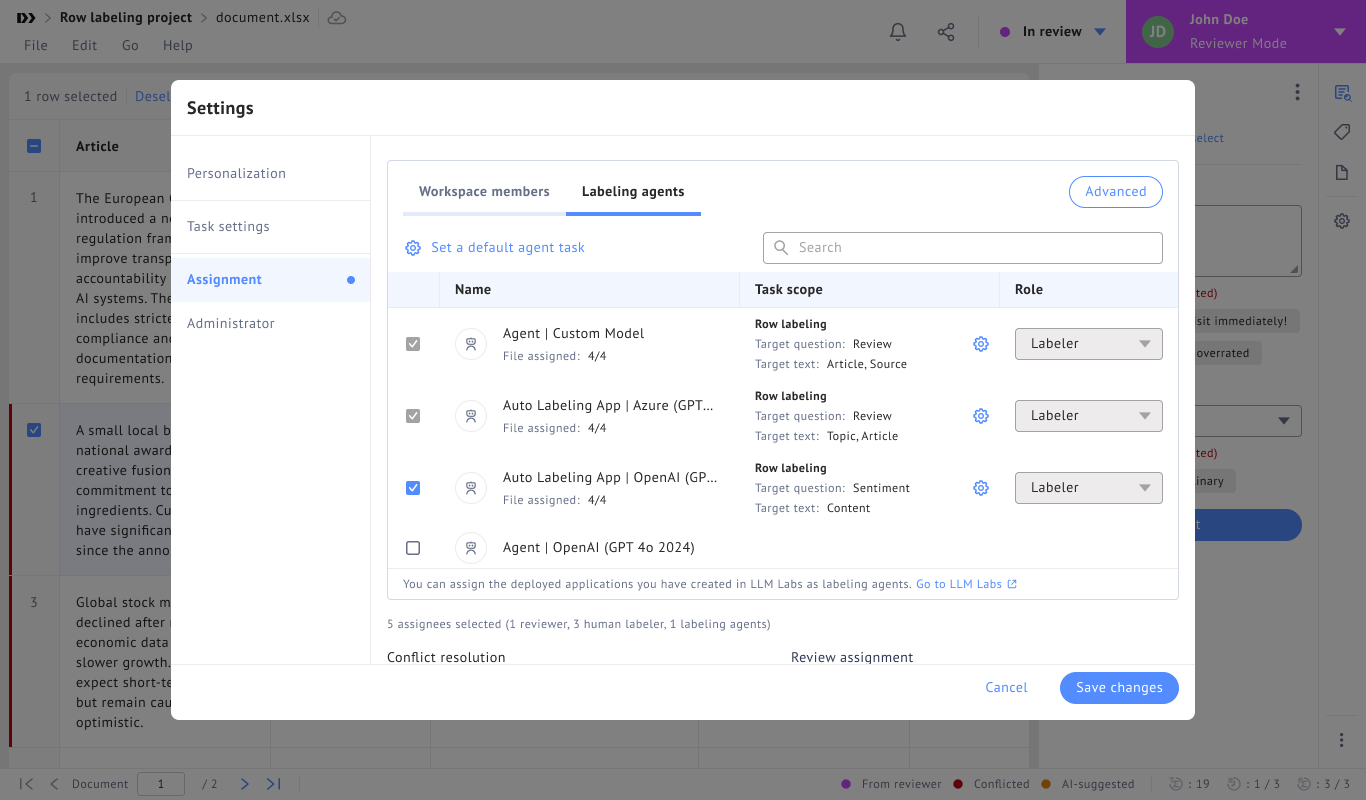
You can configure:

  1. Target questions: the one or more questions you want the labeling agent to answer.

  2. Input columns: the columns the labeling agent should use as context.

A single labeling agent can be assigned to multiple row-labeling questions. This is useful when:

  • several related questions should be answered from the same context

  • one question is a follow-up to another

  • your workflow includes conditional question logic

  • you want one agent to handle a complete question group instead of splitting it across multiple agents

You can assign both human members and labeling agents. Each model counts toward your assignment limit.

Multiple-question assignment

In row labeling projects, one labeling agent can answer more than one question.

This is helpful when the questions are related and should be answered from the same input context.

For example, one agent can answer:

  • the primary classification question

  • a follow-up detail question

  • a supporting explanation or extraction field

Using one agent for related questions can improve consistency because the model sees the same context and can reason across the connected questions in one workflow.

Conditional question workflows

Multiple-question assignment is especially useful for conditional question workflows.

For example:

  • Question 1: Is this feedback about billing?

  • Question 2: If yes, what is the billing issue type?

If both questions are assigned to the same labeling agent, the agent can use the answer to the first question as pre-requisite condition for the second.

This is useful for:

  • decision-tree style annotation

  • follow-up classification

  • structured extraction with branching logic

  • survey or form-style review workflows

For best results, explicitly describe the conditional logic in your model instructions, including when the agent should answer a follow-up question and when it should skip it.

Launch the project and trigger labeling

When you click Launch project, the row labeling agent automatically starts labeling the assigned data.

If a labeling agent has been assigned multiple row-labeling questions, it will generate answers for all questions within its configured task scope.

Review answers applied by the labeling agent

Once all questions are fully answered, either through external model assistance or manual input, the project can undergo a final review. This stage typically involves a reviewer ensuring the consistency and accuracy of all annotations before submission or export through reviewer mode.

View and compare performance

You can track the performance of both human labelers and labeling agents from the Analytics page.

From there, you can compare IAA scores and other quality metrics across all labelers, including both humans and models.

Limitations

  • Limited supported question type for optimized performance.

  • Model performance depends heavily on prompt quality and label definition clarity.

Last updated