Amazon Bedrock

Connect your extension to Amazon Bedrock model to help you predict your label with your model of choice.

Before you begin

To use Anthropic models (such as Claude Sonnet or Claude Opus), Amazon Bedrock requires you to submit your use case details before granting access to their models on Bedrock. Please refer to the Claude Documentationarrow-up-right for more information.


Create a Bedrock Access Policy

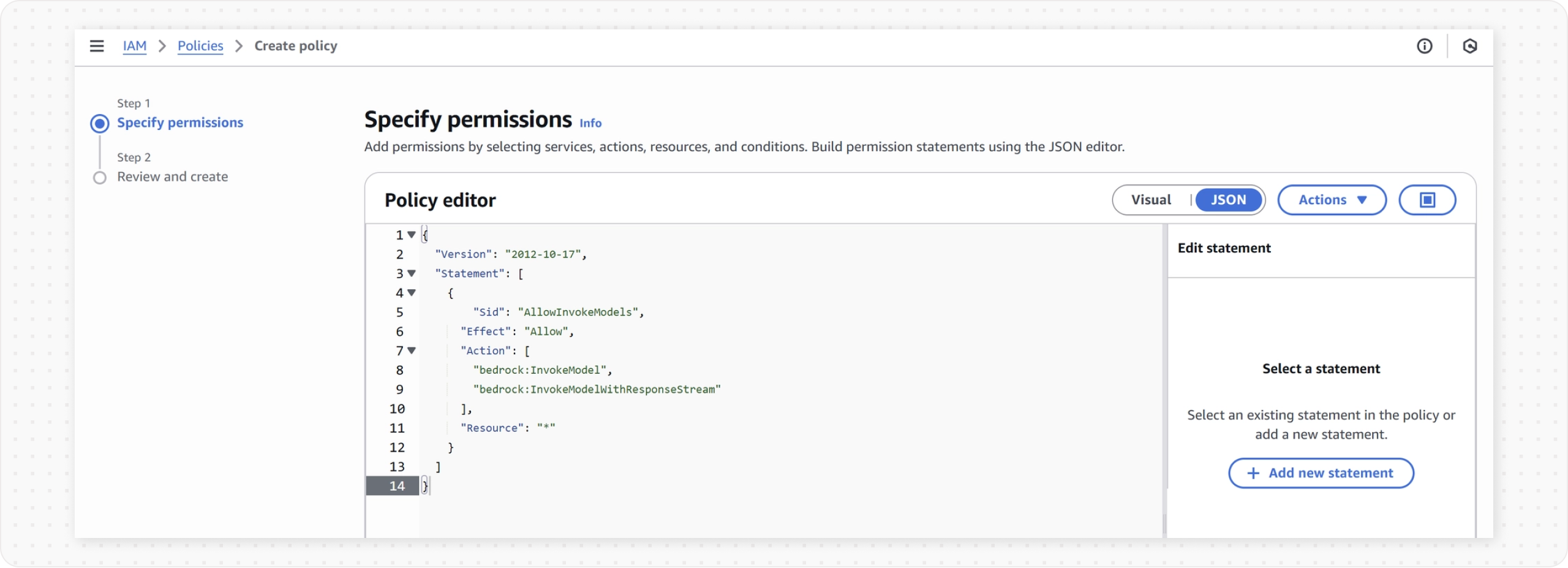
First, you'll create an IAM policy that grants permission to call Bedrock models. This is the only permission the extension needs.

  1. Open the IAM in AWS

  2. Navigate to Policies.

  3. Click Create policy

  4. Switch to the JSON tab and paste the following:


Set Up Your AWS Credentials

Now you need to give the extension a set of AWS credentials that carry the policy you just created. There are two ways to do this, pick the one that fits your setup.

Approach
Best for
How credentials work

IAM User

Quick setup, personal use

Long-lived access keys you generate once

IAM Role

Production, shared environments

Temporary keys

Option A - Using an IAM User

This is the fastest way to get started. You'll create a dedicated user and generate a permanent access key pair.

  1. Open the IAM in AWS.

  2. Navigate to Users, then click Create Users.

  3. Attach the created policy from previous step. You may assign the policy through a group or attach it directly to the user.

  4. Go to the Security credentials tab.

  5. Under Access keys, click Create access key.

  6. Copy the Access Key ID and Secret Access Key.

IAM Roles use temporary credentials that expire automatically, making them more secure for production use. This approach requires the AWS CLI.

Set up the role:

  1. Open the IAM in AWS.

  2. Navigate to Roles, then click Create Role.

  3. Attach the policy you created earlier

  4. To generate temporary credentials, set up the AWS CLI and assume the role using the following command. Refer to the AWS CLI documentation below for installation and configuration instructions:

    Install and configure the AWS CLI (if you haven't already):

⚠️ The AWS credentials in your CLI profile must have permission to assume the role you just created.

Generate temporary credentials by running:

Replace ACCOUNT_ID with your 12-digit AWS account ID.

You'll get a response like this:

🔄 These credentials are temporary. When they expire (check the Expiration timestamp), run the assume-role command again and update the extension with the new values.


Start Predicting

  1. At this point, you should have your Access Key ID, Secret Access Key, and Session Token (optional).

  2. Copy the values from the response and enter them into the extension:

Access Key ID

AccessKeyId from the response

Secret Access Key

SecretAccessKey from the response

Session Token

SessionToken from the response, empty if you are using IAM User

  1. Click Predict labels, and you're done! Your prediction will appear in the editor.

Last updated