> For the complete documentation index, see [llms.txt](https://docs.datasaur.ai/llms.txt). Markdown versions of documentation pages are available by appending `.md` to page URLs; this page is available as [Markdown](https://docs.datasaur.ai/data-studio-projects/lets-get-labeling/span-based.md).
# Span Based
In span labeling projects, you label individual tokens or spans of tokens. This method works well for tasks like [NER](https://datasaurai.gitbook.io/datasaur/overview/task-type/project-templates#named-entity-recognition) and[ POS](https://datasaurai.gitbook.io/datasaur/overview/task-type/project-templates#part-of-speech). To see how span labeling works, [watch this YouTube video](https://youtu.be/s4NhOJzeQLM).
### How to label
To label a token or span:
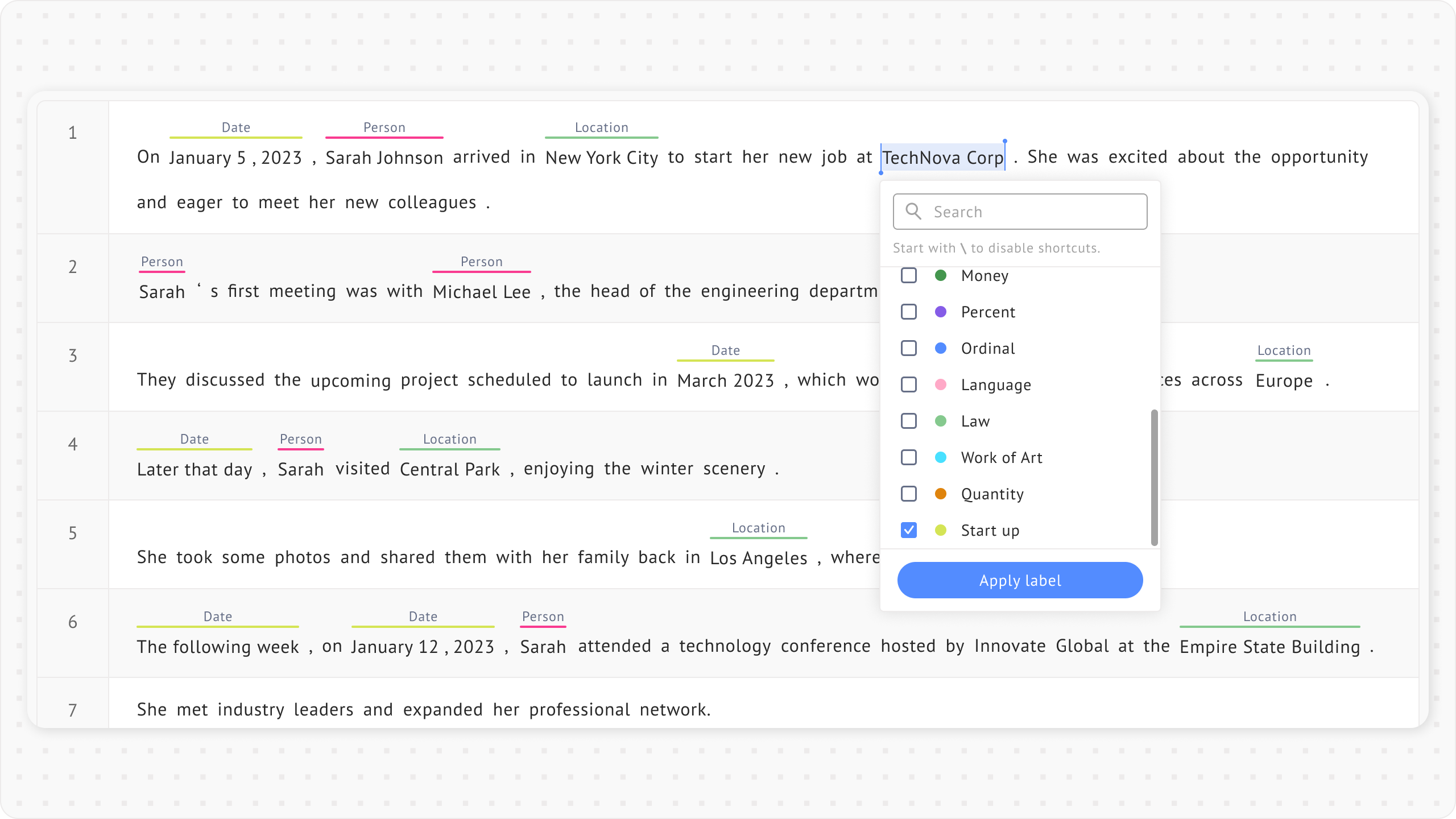
* Use your pointer to select a word or a group of words in the dataset.
* A list of label classes will appear.
* Select a label from the list.
### Keyboard shortcuts
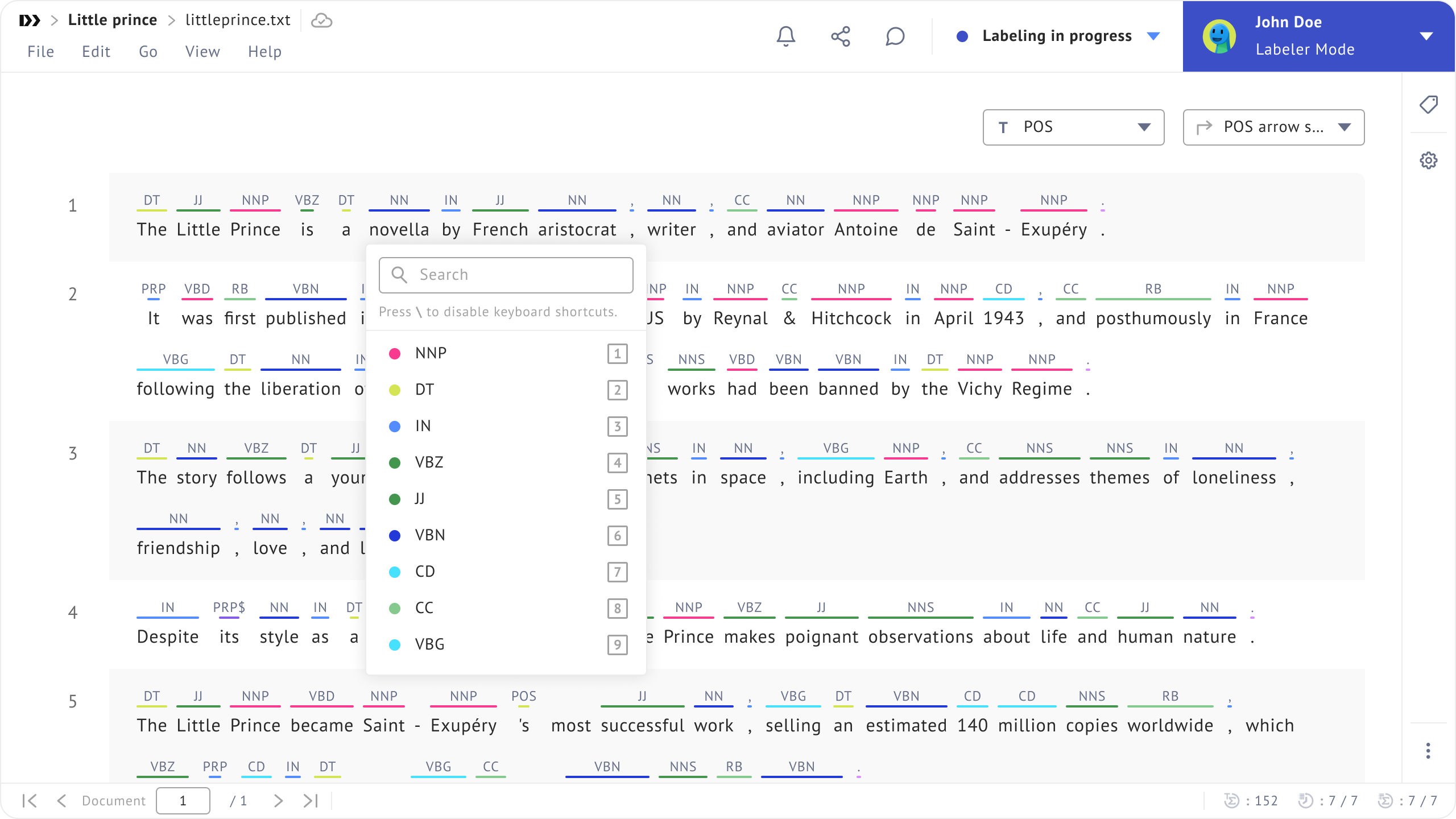
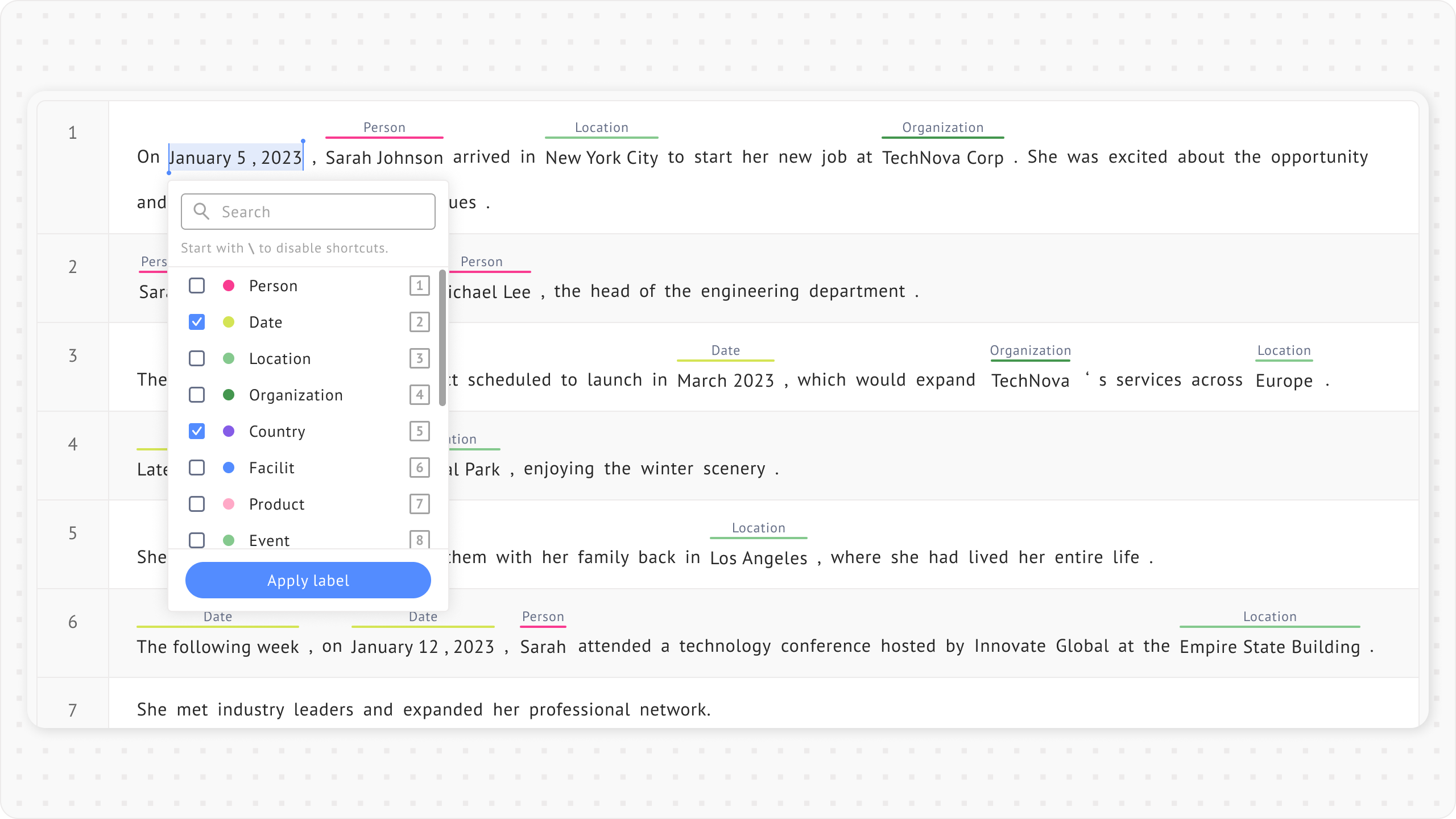
When you select a span, a label box with available labels appears, allowing you to choose the label you want. The first 9 label classes show their hotkeys on the right. To apply the label, you can click it or use keyboard shortcuts (`1`–`9`).
### Search for labels
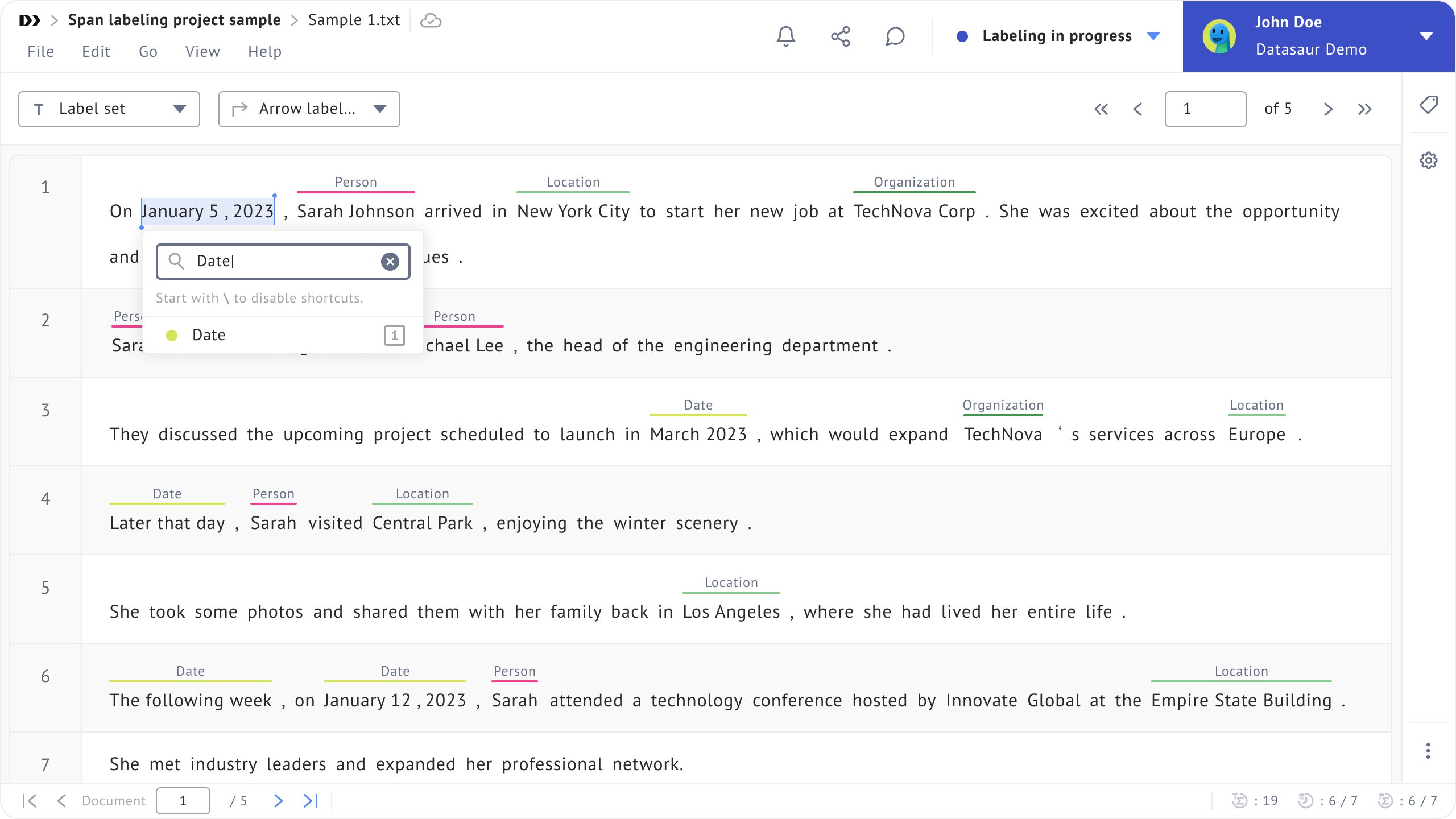
If you have many labels, you can search in the label box by typing part of a label name. For example, type `date` then select the label using its hotkey (`1`). The hotkeys follow the order of labels currently shown in the label box, not fixed labels. This means the same key (for example, `1`) may apply to different labels depending on your search.
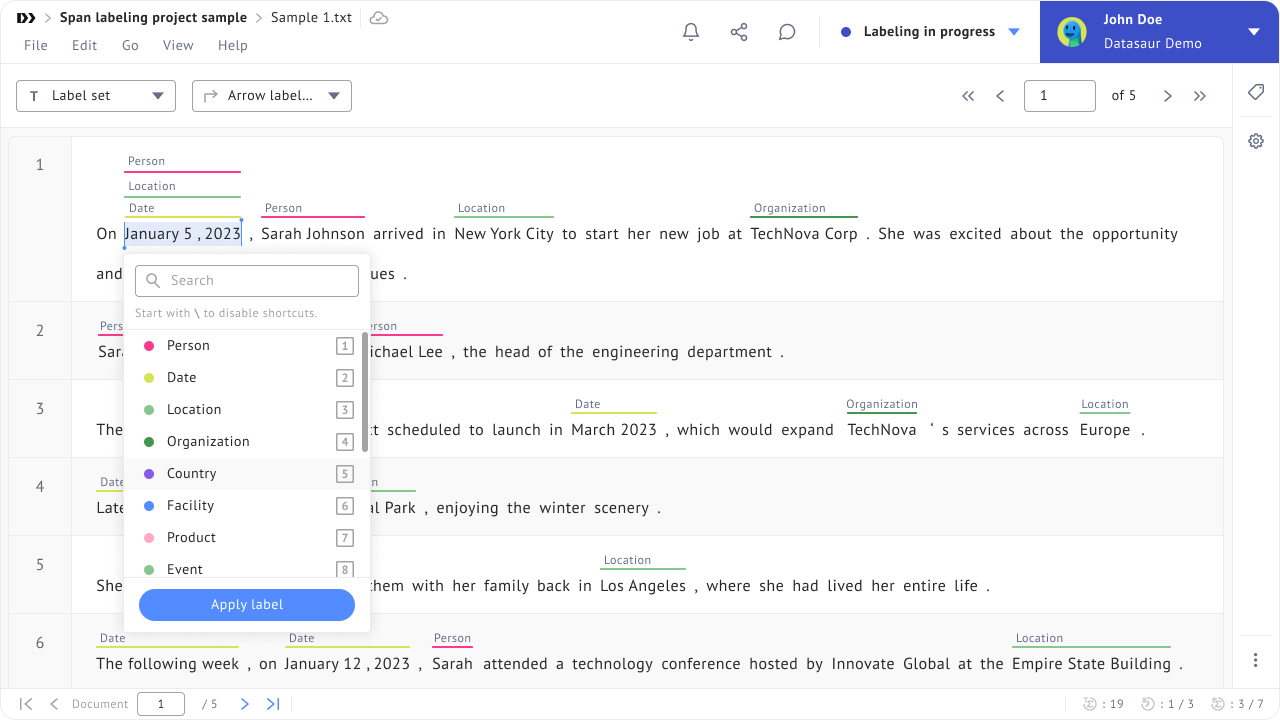
### Apply multiple labels to the same span
You can apply multiple labels to the same span in several ways:
1. **Using your pointer:** After you apply the first label, select the same span again, hold `Shift`, and choose another label. You can keep adding labels as long as you hold `Shift` while selecting them.
2. **Using keyboard shortcuts:** Select the span, use the up and down arrow keys to find a label, then press `Shift` + `Enter`.
3. **Using multiple label selection:** Enable this option in the project settings to apply multiple labels without holding `Shift`. See the next section for details.
### Enable multiple labels selection
With **Enable multiple label selection**, you can select multiple labels and apply them to the same token or span without holding `Shift`. This makes the process faster and easier.
#### Enable the feature
Each labeler has the flexibility to choose a preferred method, whether using keyboard shortcuts or enabling the setting in the interface.
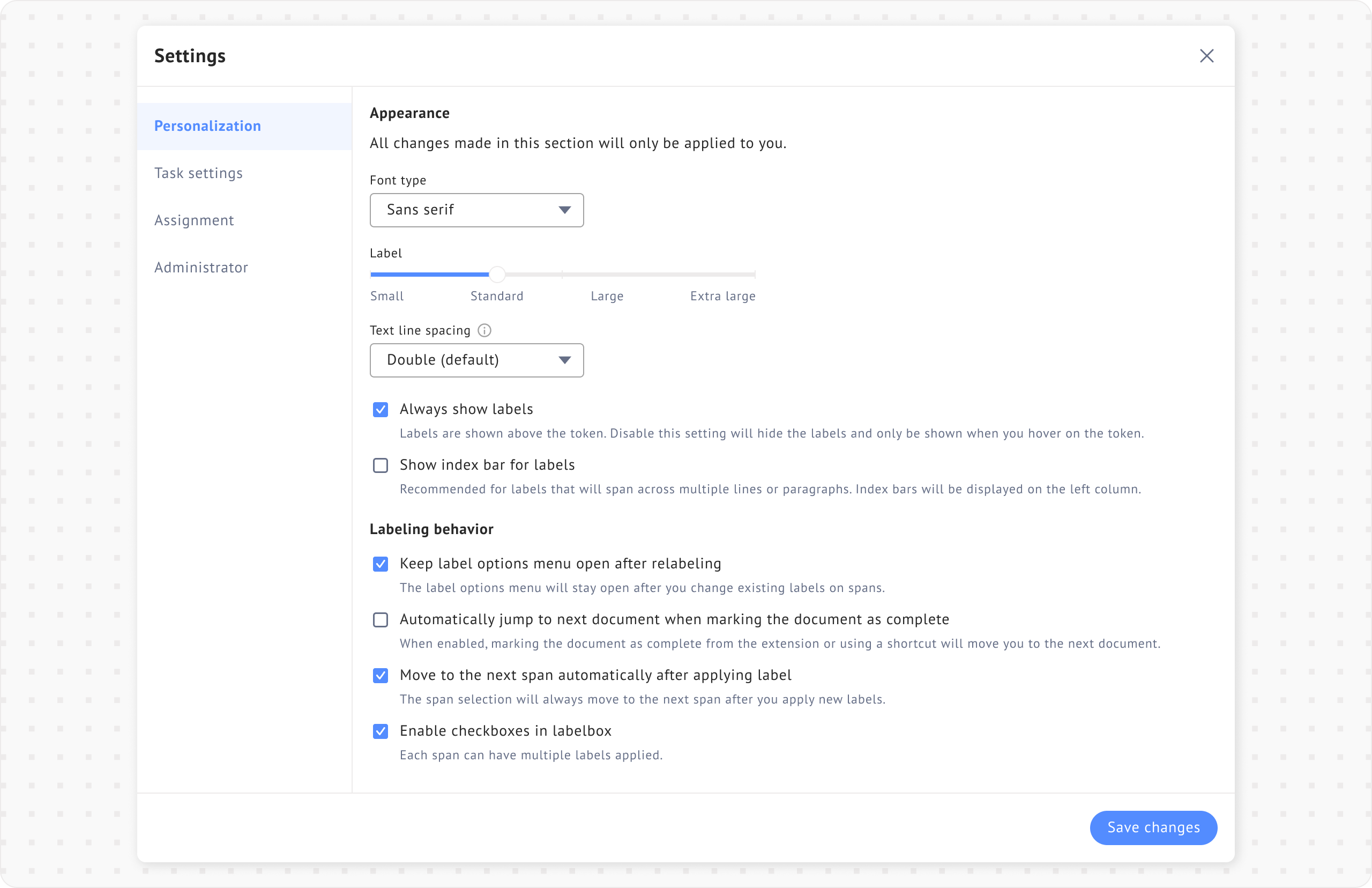
You can find the setting under **File menu** > **Settings** > **Personalization**.
{% hint style="info" %}
You can access **Personalization** settings after the project is created. Each labeler needs to enable this setting for their own project, it does not apply to other labelers.
{% endhint %}
Once the setting is enabled, follow these steps to apply multiple labels to a span:
1. Select a span.
2. When the label box appears, select the labels you want to apply. You can choose as many as needed. To select labels, you can:
1. Use keyboard shortcuts (`1`–`9`)
2. Use the up and down arrow keys (`↑` and `↓`) and press `Enter` .
3. Click **Apply labels** to apply all selected labels to the span.
1. You can also can use the `Tab` key to move between labels until you reach **Apply label**, then press `Enter`.
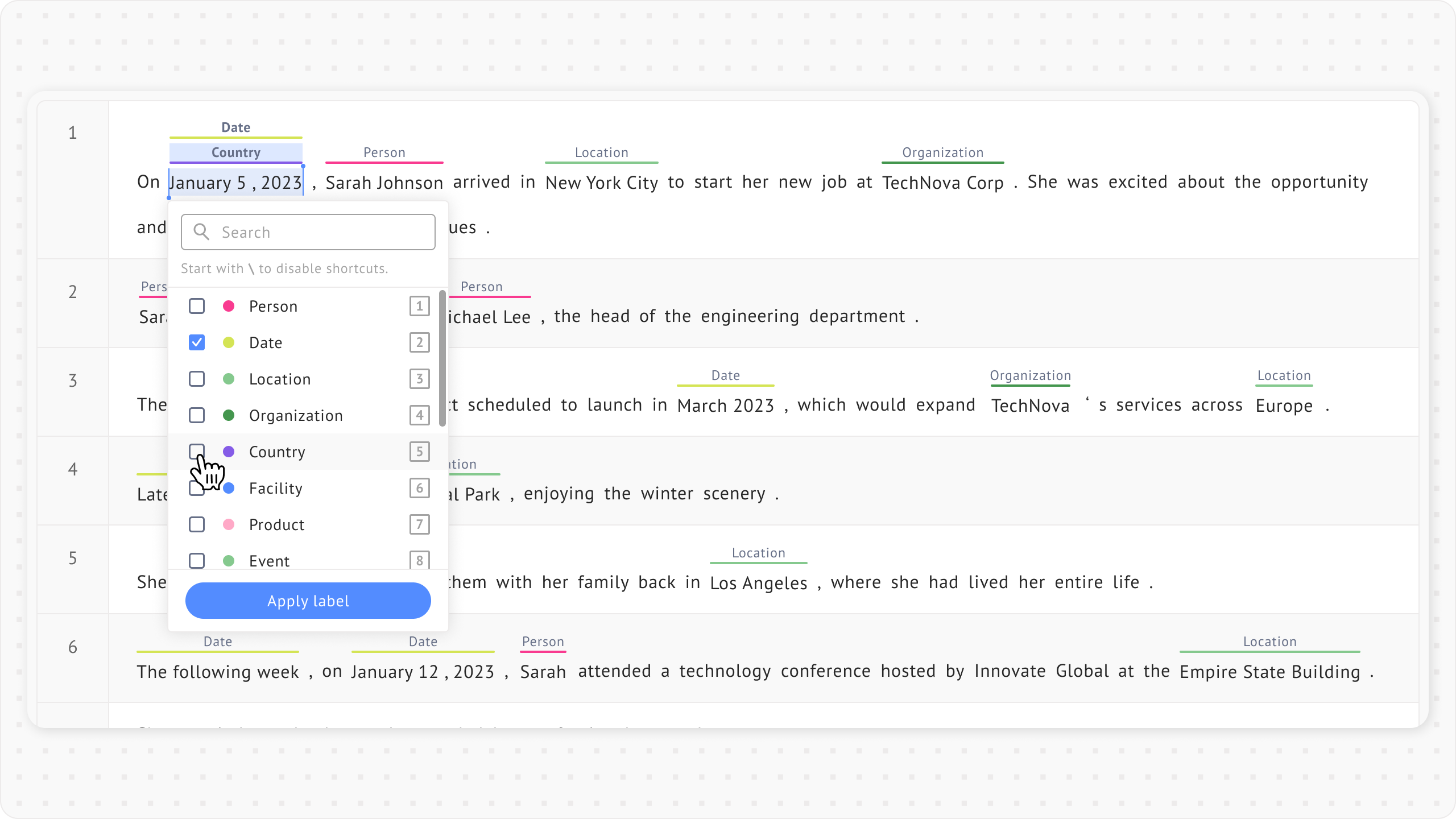
#### Modify applied labels
To modify the labels applied to a span:
* Click the label you want to change.
* Deselect the label you want to change, then select the correct one.
* Click **Apply label**.
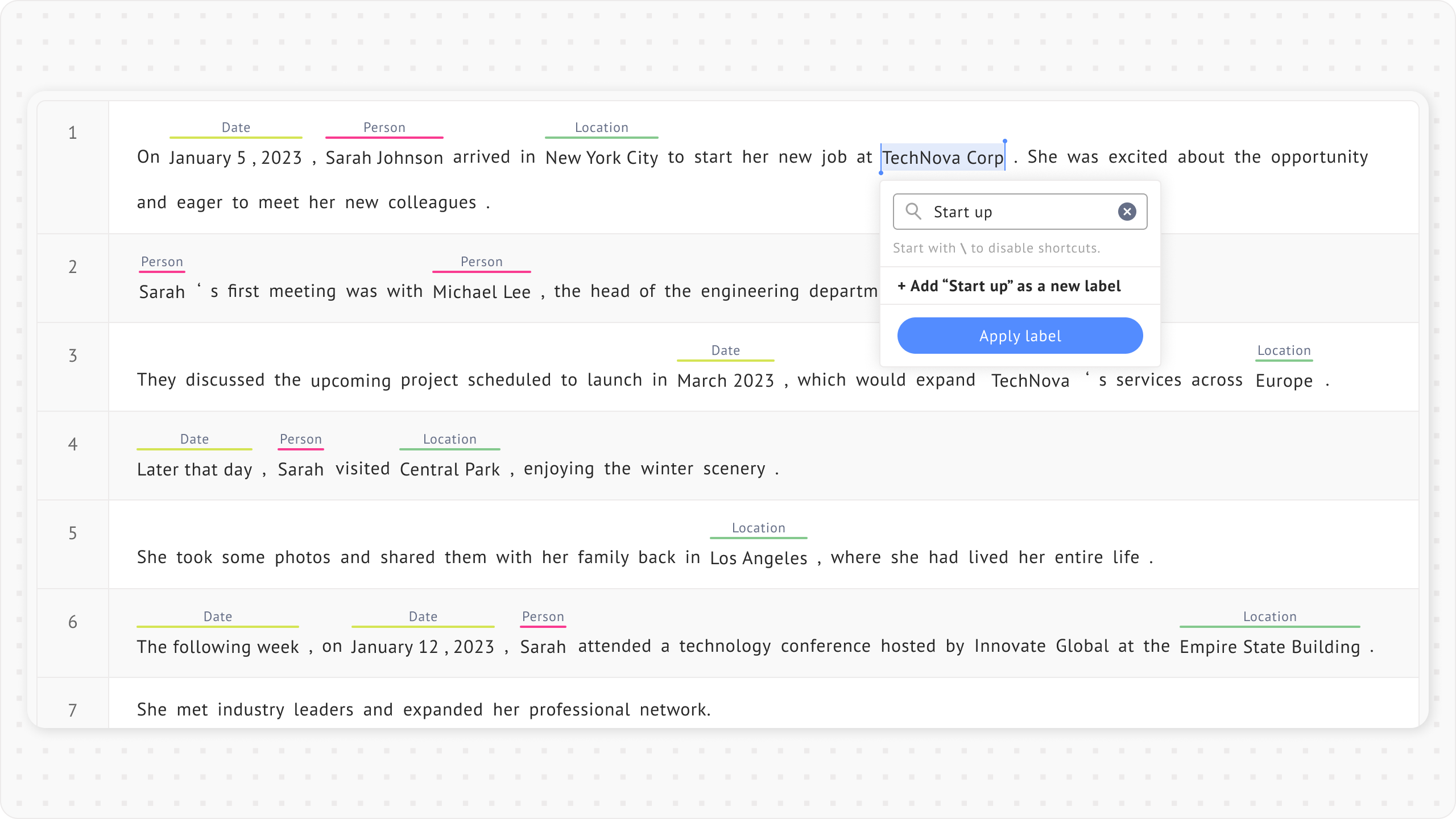
#### Add a new label classes
If the label you need isn’t in your label set, type it to create a new one. You’ll see an option to add the label you type as a new label. Once you add it, it will be available for future use.
#### Apply labels to multiple spans
In many cases, several spans share the same label. You can apply a label to multiple spans at once by holding `Ctrl` while selecting them.
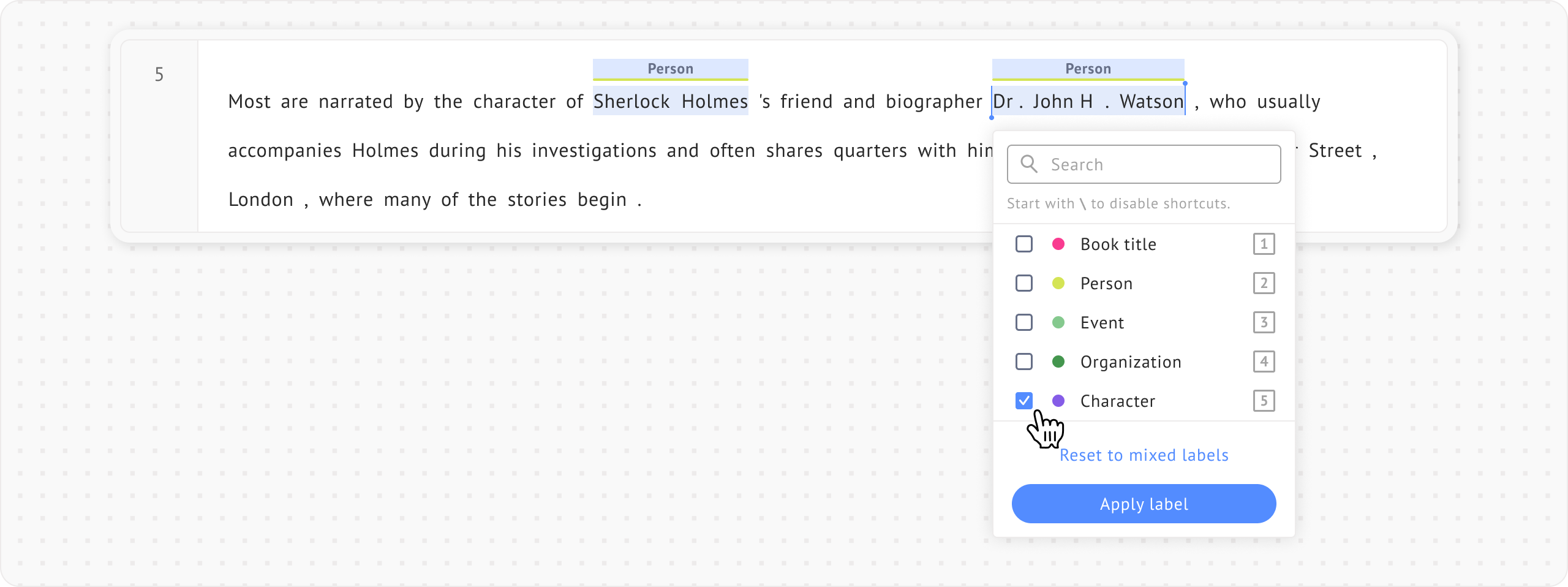
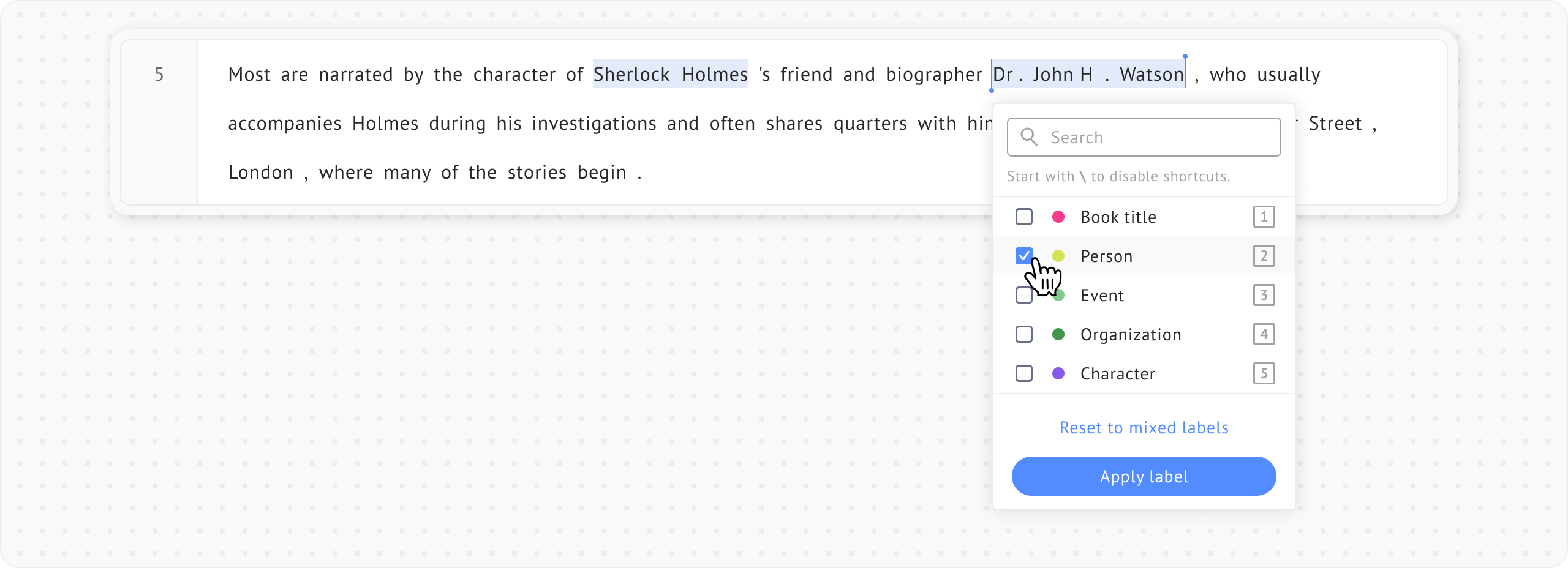
Let’s say you want to apply the same label to two spans: `Sherlock Holmes` and `Dr. John Watson`.
**Case 1: If `Sherlock Holmes` and `Dr. John Watson` don't have any labels applied**
1. Select both spans while pressing `Ctrl`.
2. Choose the labels you want.
3. Click **Apply label**.
**Case 2: If `Sherlock Holmes` and `Dr. John Watson` already have the label `PERSON` and you want to replace it with existing label class**
1. Select both spans while pressing `Ctrl`.
* The checkboxes will be reset — the `PERSON` label will not be selected.
* The **Reset to mixed labels** button appears but is disabled.
2. To change the labels:
1. Select new labels (for example, `ORGANIZATION` and `BOOK TITLE`)
* The **Reset to mixed labels** button becomes enabled. Clicking this will resets the label selection to its previous state.
2. Click **Apply label**. Both `ORGANIZATION` and `BOOK TITLE` labels will be applied to `Sherlock Holmes` and `Dr. John Watson` .
**Case 3: If** `Sherlock Holmes` **and** `Dr. John Watson` **already have the label** `PERSON` **and you want to replace it with a new label that is not in the label set**
1. Select both spans while pressing `Ctrl`.
* Checkboxes will be reset — the `PERSON` label will not be selected.
* The **Reset to mixed labels** button appears but is disabled.
2. To change the labels:
1. Type a new label (for example, `CHARACTER`) then click **Add new label.** The label will be selected automatically.
* The **Reset to mixed labels** button becomes enabled. Clicking this resets the label selection to its previous state.
2. Click **Apply labels.** The `Character` label will be applied to `Sherlock Holmes` and `Dr. John Watson` .
**Notes**
* Multiple label selection is only available for tokens and spans, not arrows.
* If **Allow arrows to be drawn between labels** is enabled, checkboxes will still appear in the label box, but you won’t be able to select multiple labels for arrows.
* If **Spans should have at most one label** is enabled (for example, in [POS](https://simple.wikipedia.org/wiki/Parts_of_speech) use cases), checkboxes will still appear in the label box, but you won’t be able to select multiple labels for arrows.
### Add attribute to a label
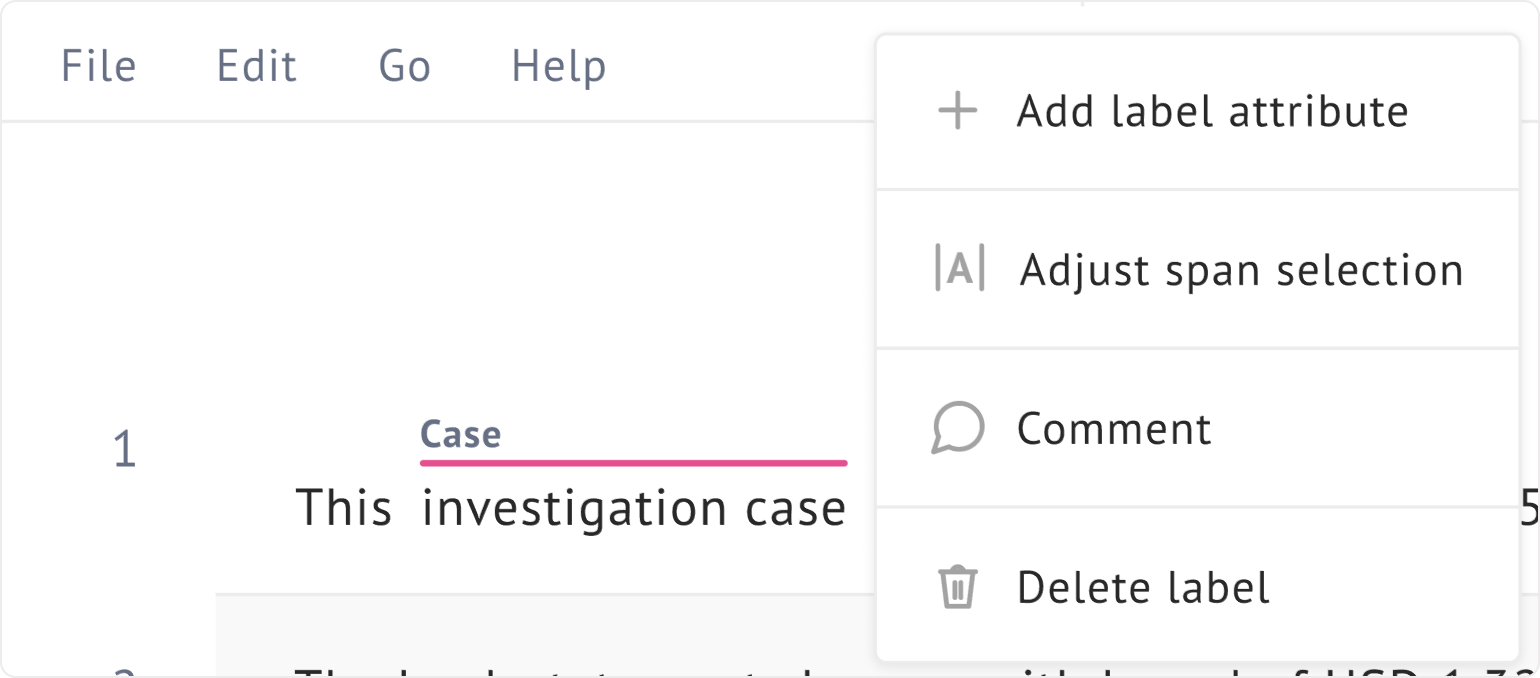
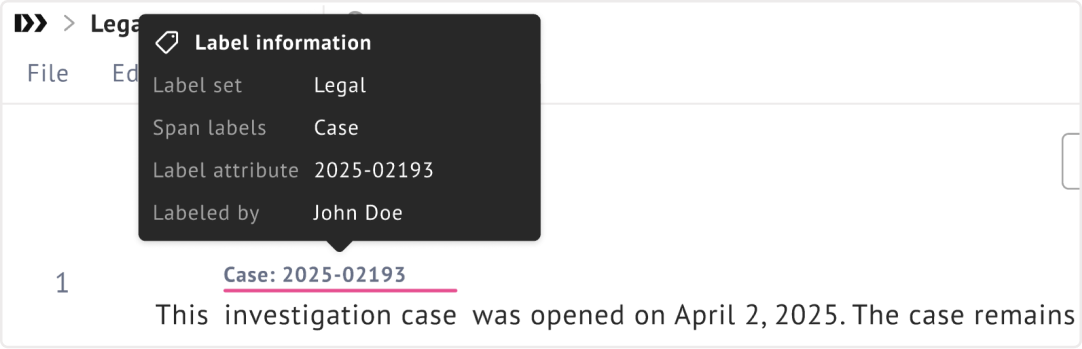
After applying a label to a span, you can attach an [attribute value](/compatibility-and-updates/common-terminology.md#labeling-concepts) to it by right-clicking the applied label and selecting **Add attribute**.
The attribute value is displayed:
* In the **tooltip** when hovering over the applied label.
* In the **editor**, next to the label name.
For example:
**Attribute ownership**
Each labeler's attribute value is independent and only visible to themselves, labelers cannot see each other's attribute values. If two labelers apply an attribute to the same label on the same span, each value belongs to its respective labeler and does not overwrite the other.
**Conflict behavior**
A label and its attribute value are treated as a single unit. If two labelers apply the same label to the same span but with different attribute values, the entire unit (label and attribute together) will be treated as a **conflict** in the Reviewer mode. For example, if Labeler 1 applies **`ORG: Microsoft`** and Labeler 2 applies **`ORG: Google`**, they will be considered two different conflicting annotations even though both used the same label.
### Edit sentence
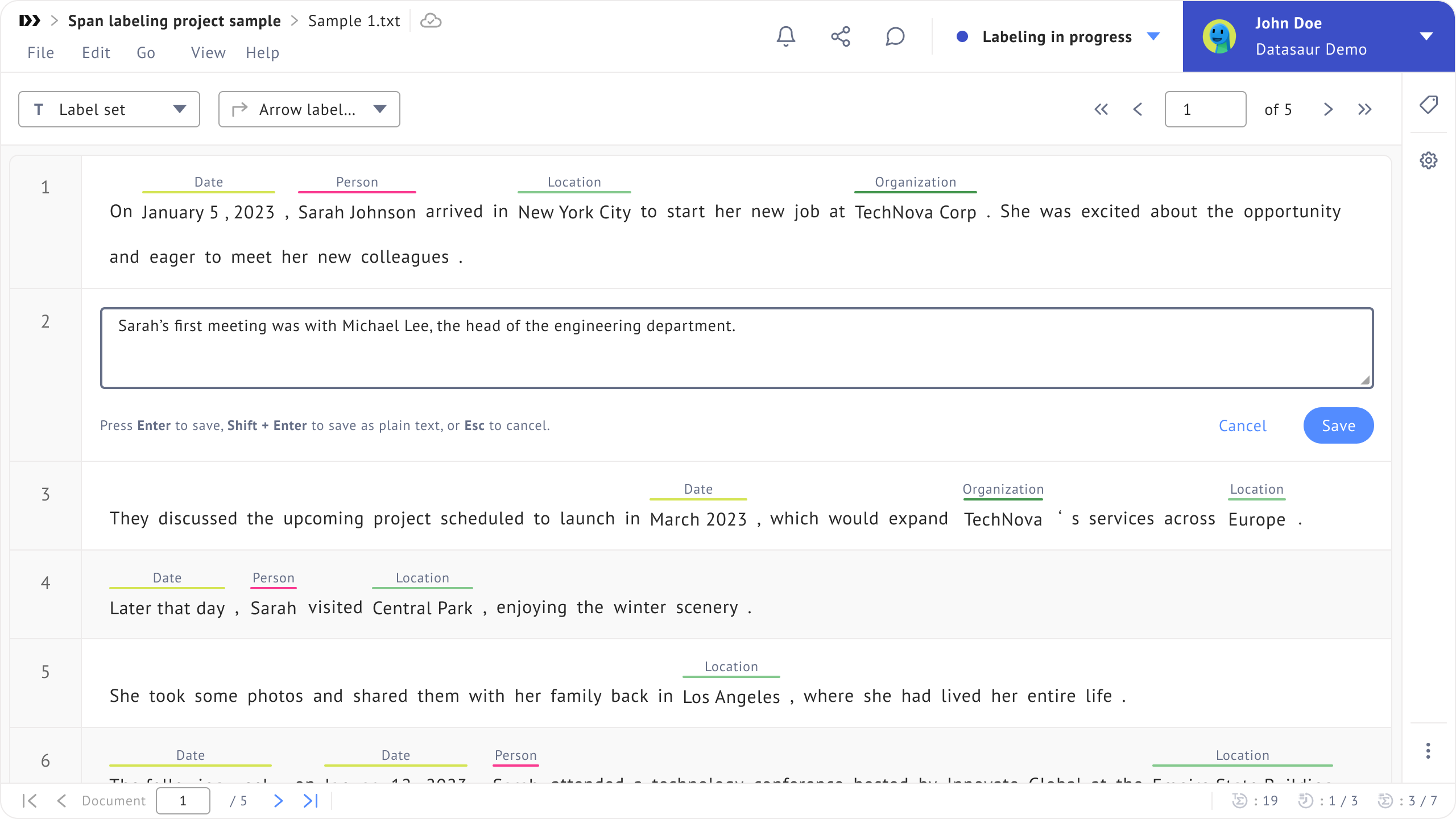
You can edit a sentence by double-clicking a line. Note that the sentence is tokenized on the server. To apply your changes, you can:
* Click **Save**.
* Press `Enter` to save.
* Press `Shift` + `Enter` to use spaces as token separator instead of the default tokenizer that Datasaur has.
{% hint style="warning" %}
When you make significant edits to a sentence or use `Shift` + `Enter` for tokenization—especially at the beginning or end **where labels are already applied**—some labels may be removed. Take extra care to avoid unintended label loss.
{% endhint %}
### Insert new lines
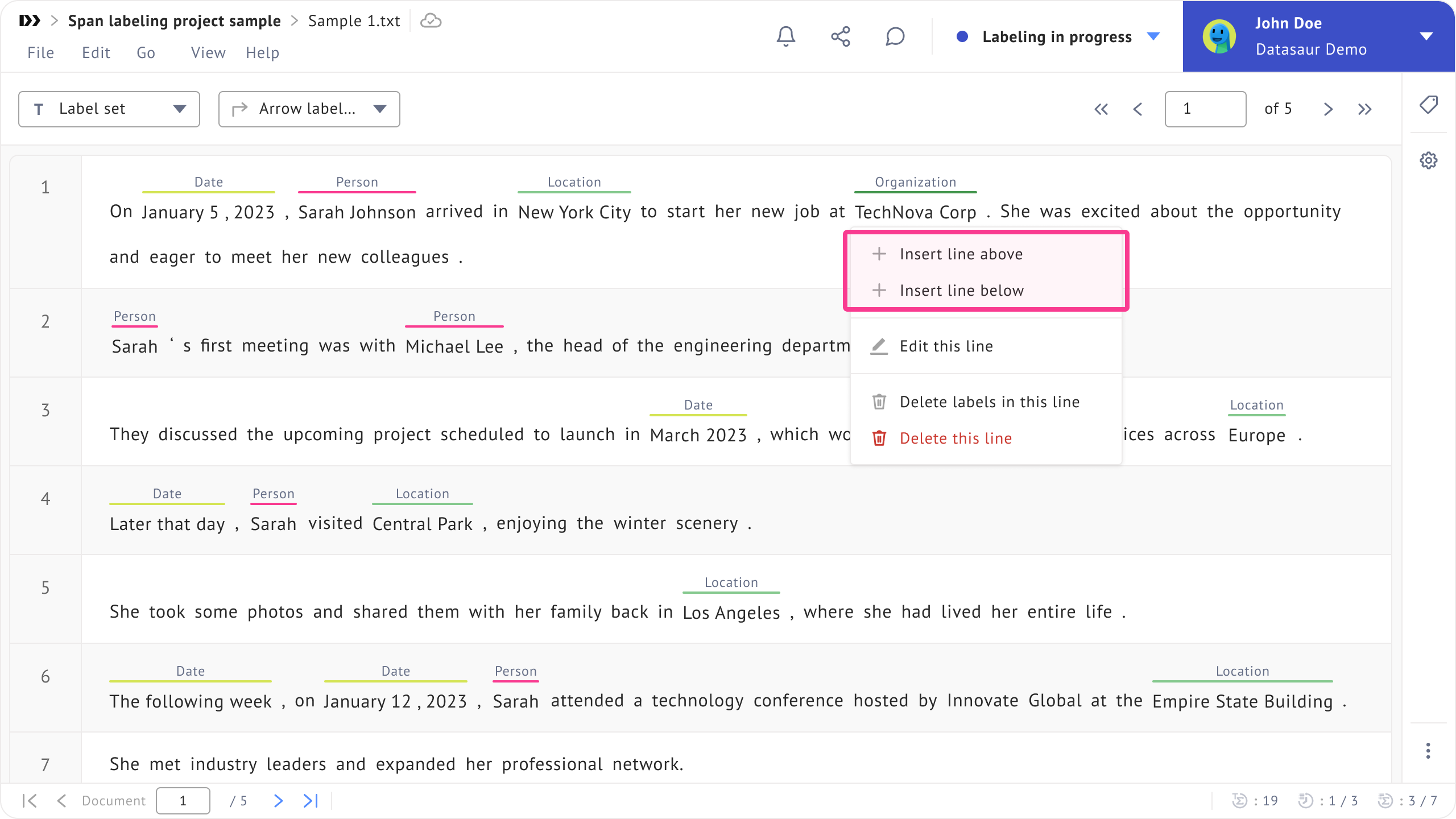
To add new lines, right-click a line and select **Insert line above** or **Insert line below**.
### Delete lines
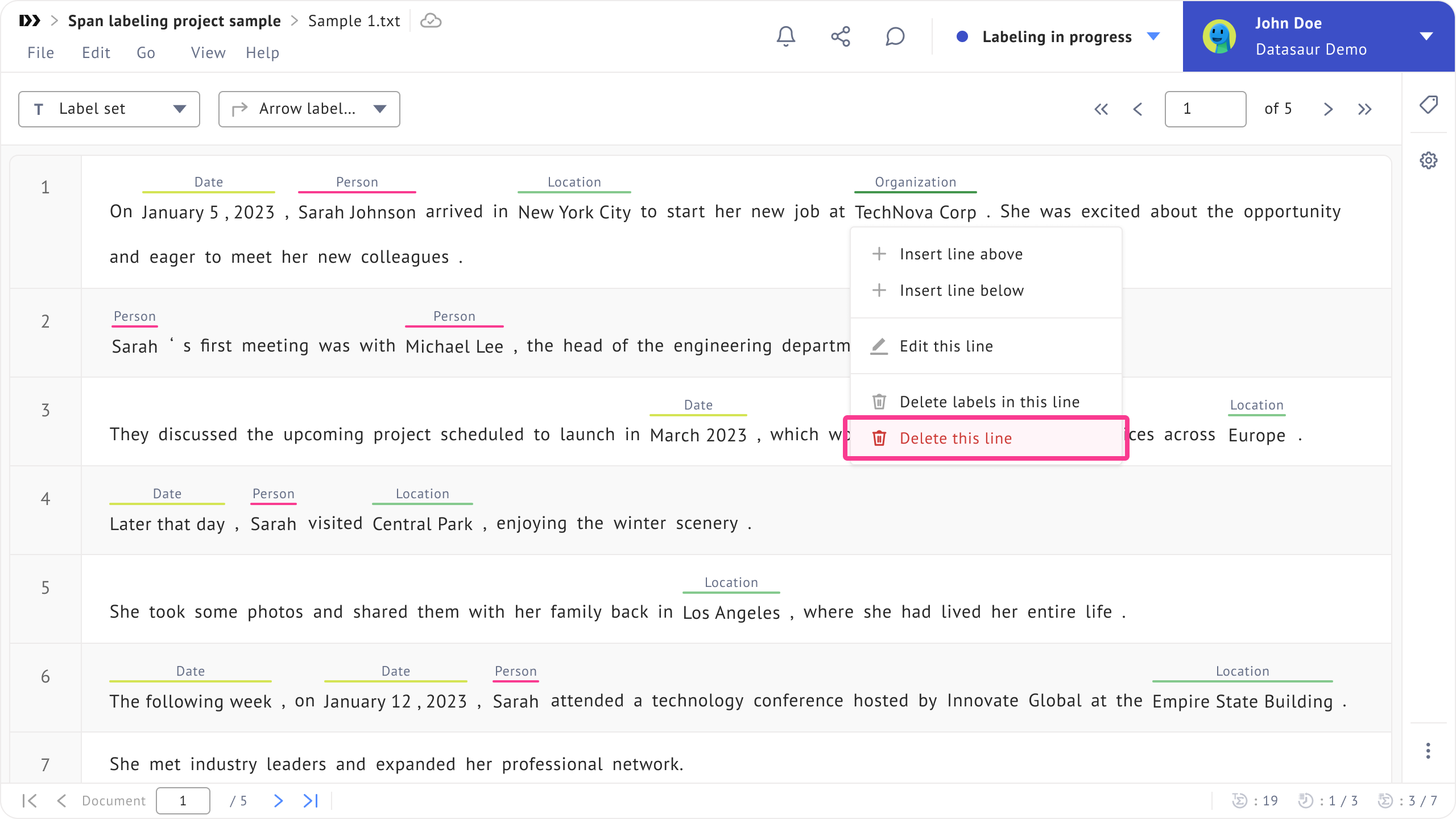
To delete a line, right-click the line and select **Delete this line**.
### Delete label
You can delete a label in two ways:
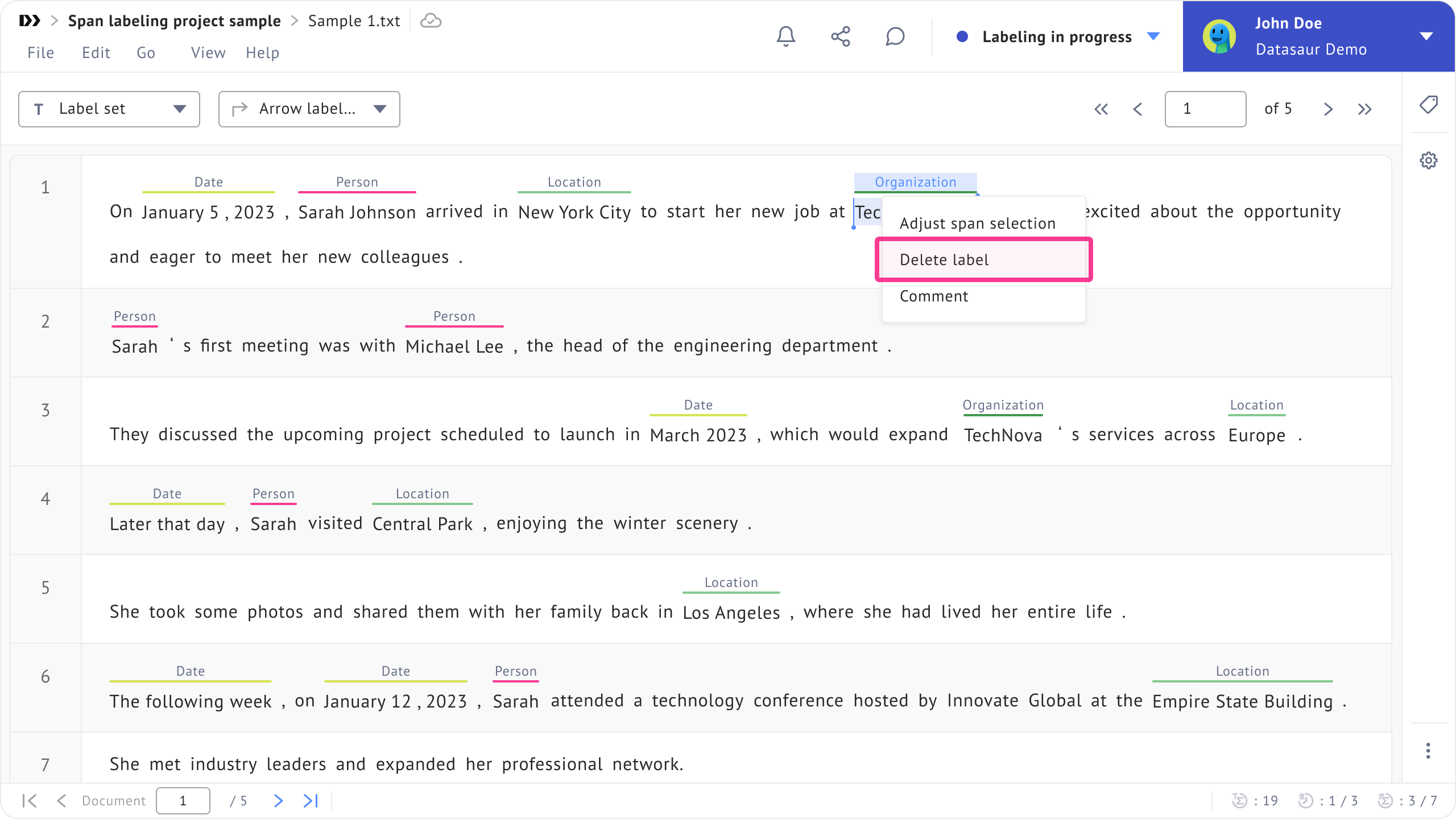
* Right-click the label and select **Delete label**.
* Left-click the label and press `Delete` or `Backspace` on your keyboard.
### Delete sentence labels
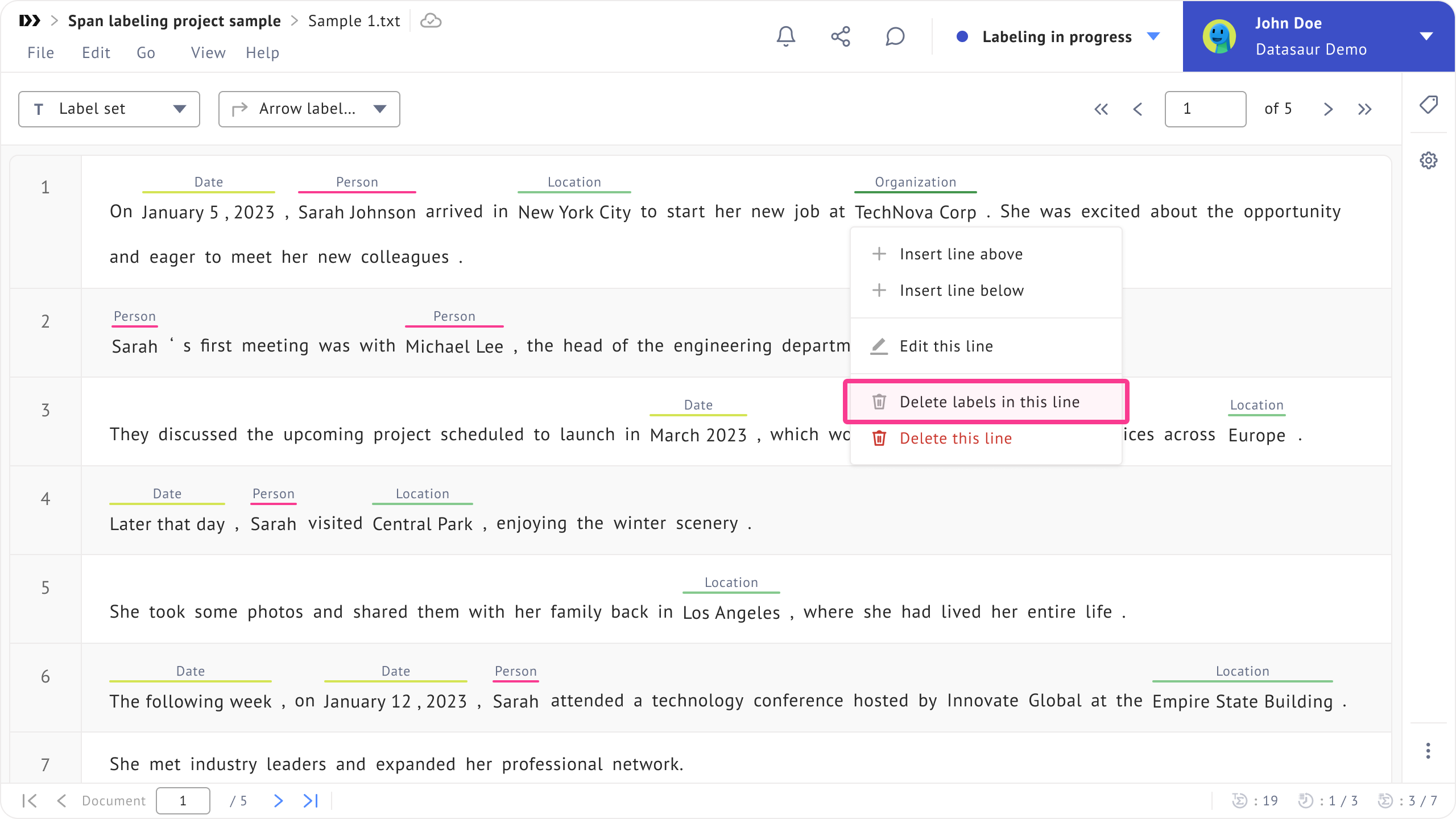
To delete all applied labels in a line, right-click anywhere in the line and select **Delete labels in this line**.
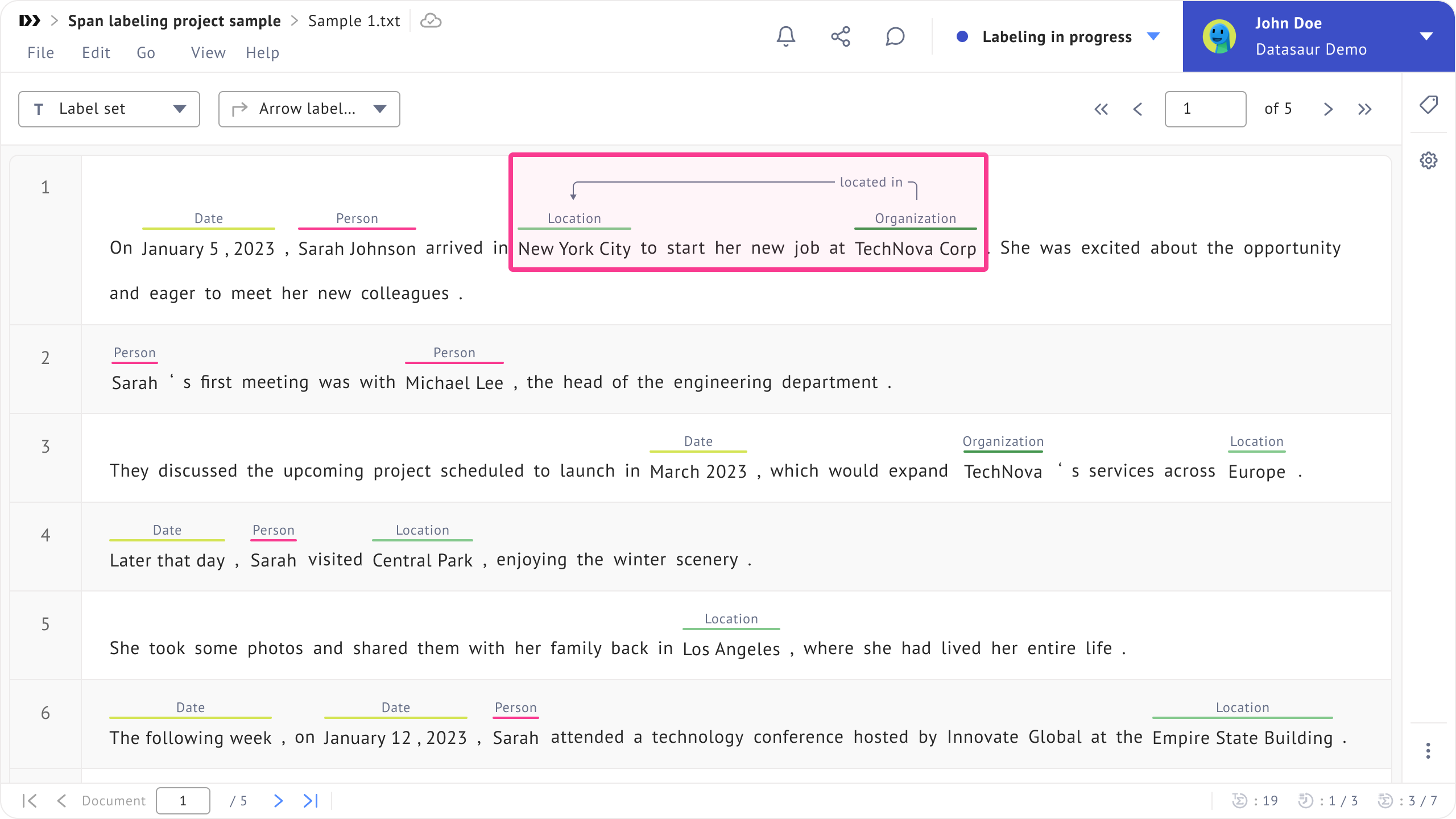
### Draw arrows
To draw arrows between labels:
1. Ensure the admin has enabled **Allow arrows to be drawn between labels**.
2. Apply labels to the spans.
3. Click and hold a label to set it as the source. An arrow will appear.
4. While holding the click, move your cursor to the label you want to set as the destination, then release.
{% hint style="info" %}
* You can also apply labels to arrows. To do this, double-click an arrow and select a label.
* You can reverse arrows, delete arrows, and remove labels from arrows by right-clicking an arrow.
{% endhint %}
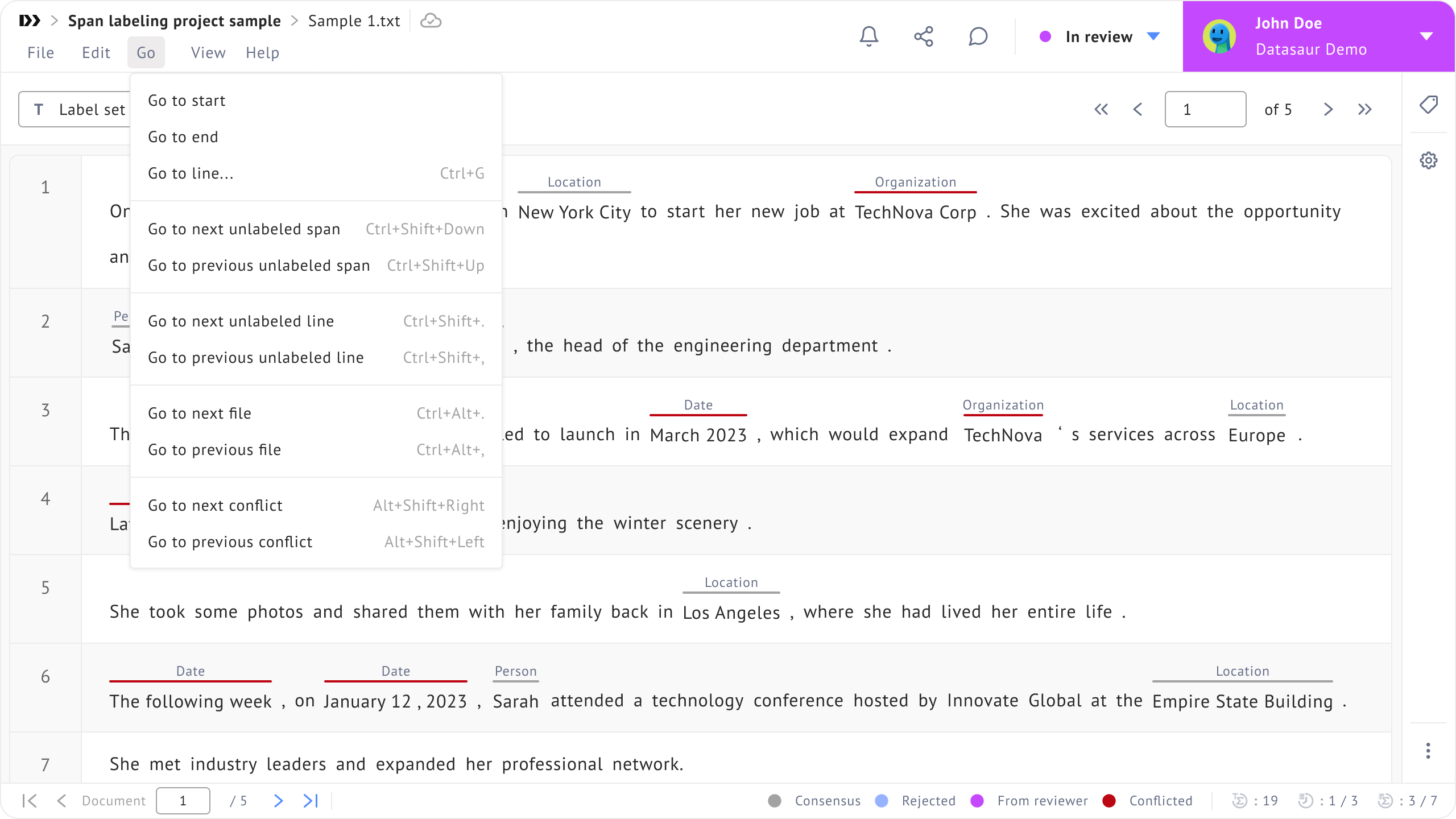
### Go menu
You can move to the desired line via the **Go** menu.
* **Go to start:** Takes you to the first line.
* **Go to end:** Takes you to the last line.
* **Go to line:** Takes you to a specific line.
* **Go to next unlabeled span:** Takes you to the next unlabeled span.
* **Go to previous unlabeled span:** Takes you to the previous unlabeled span.
* **Go to next unlabeled line:** Takes you to the next unlabeled line.
* **Go to previous unlabeled** l**ine:** Takes you to the previous unlabeled line.
* **Go to next file:** Takes you to the next file.
* **Go to previous file:** Takes you to the previous file.
* **Go to next conflict:** Takes you to the next conflicted label.
* **Go to previous conflict:** Takes you to the previous conflicted label.
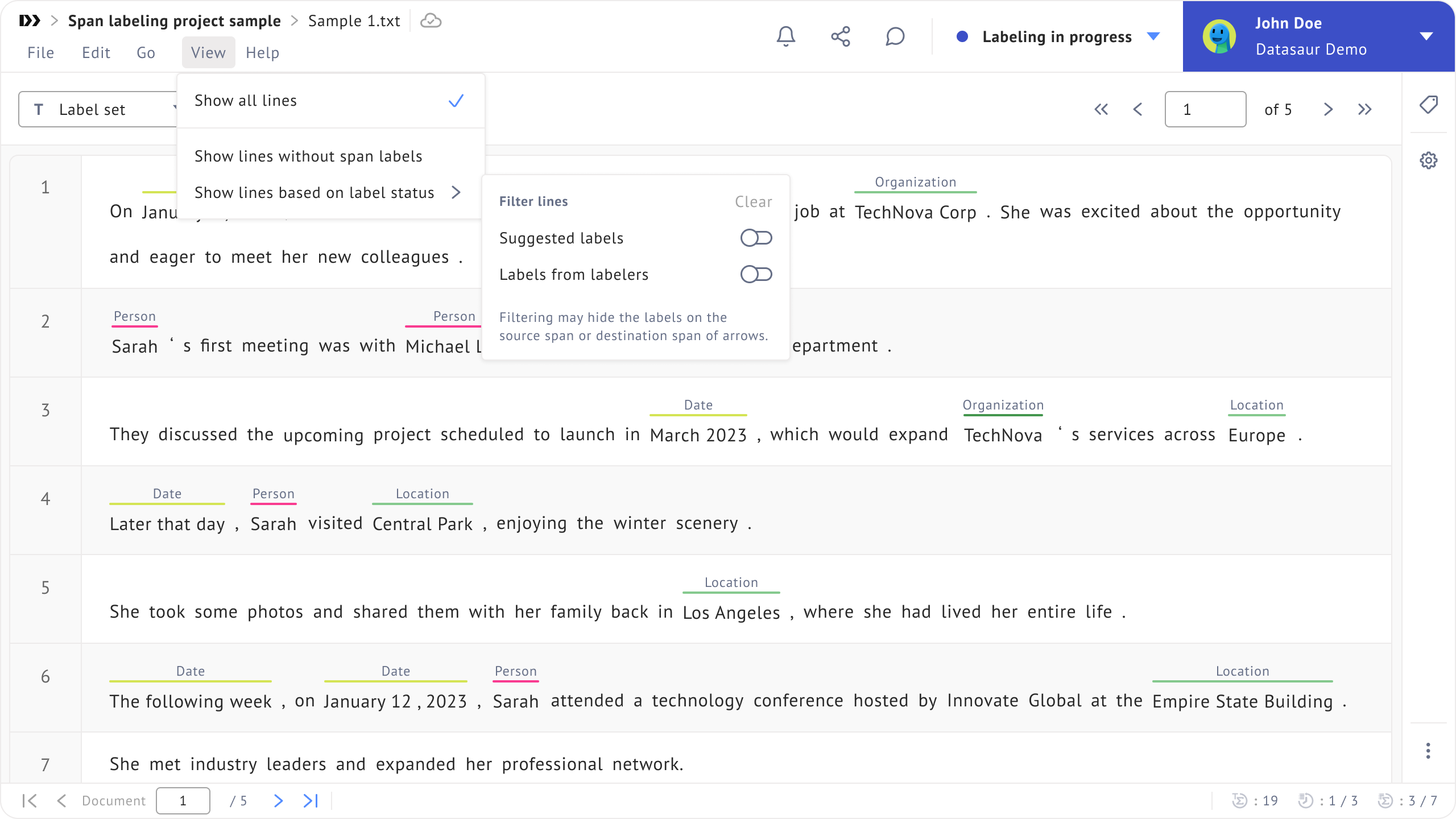
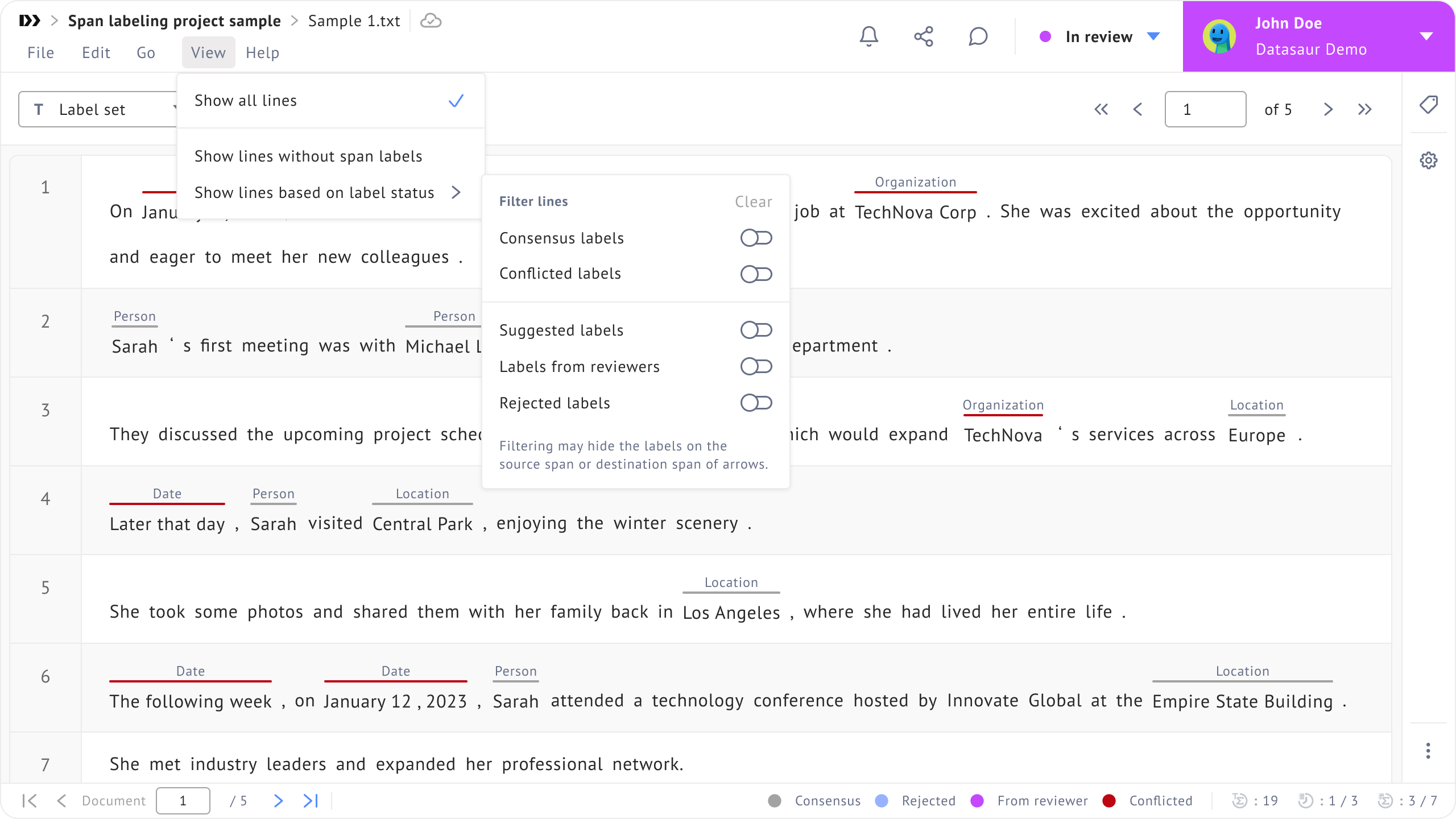
### View menu
This menu allows user to customize their view.
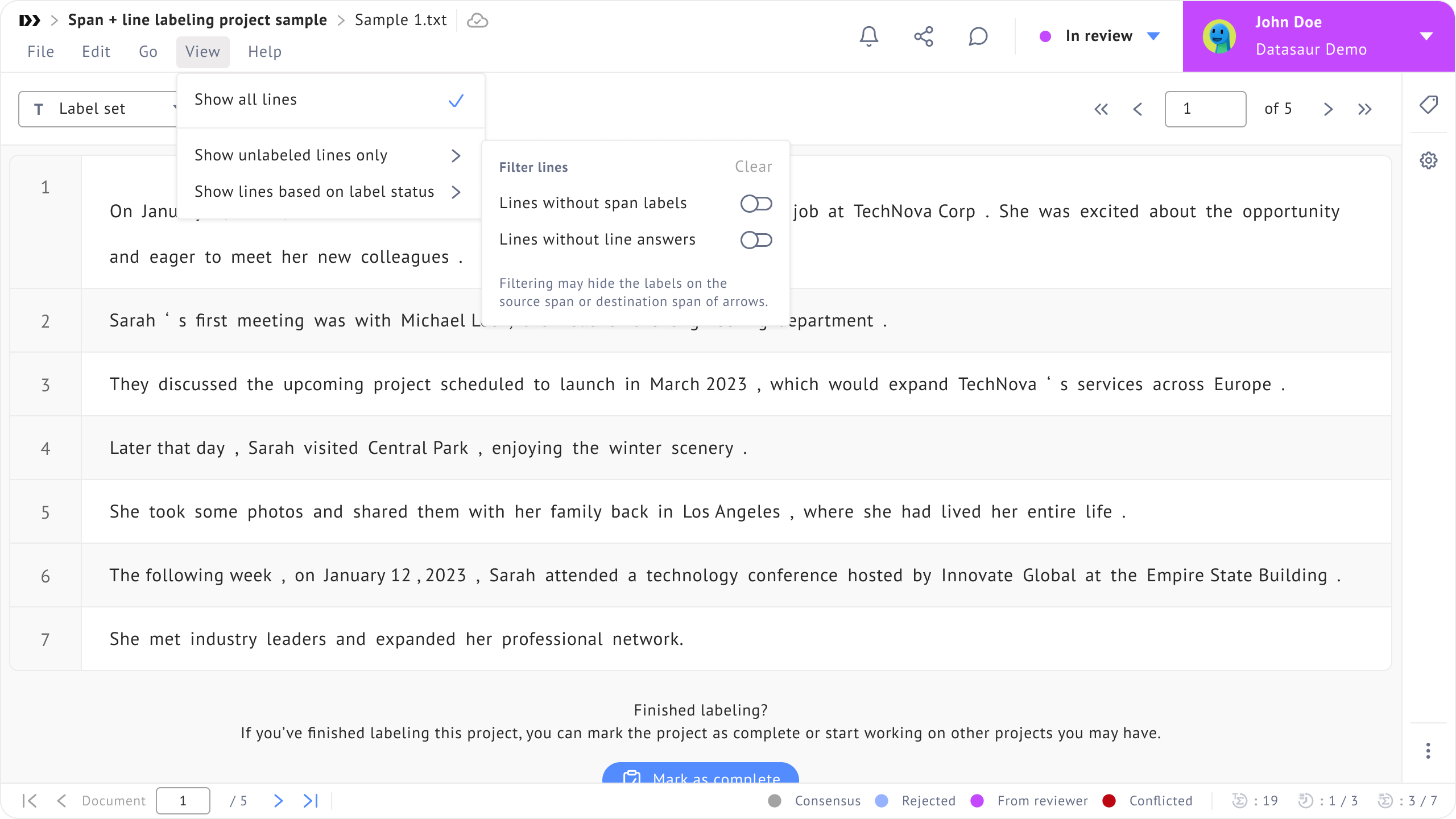
* **Show all lines:** Displays all lines, regardless of whether they have labels.
* **Show lines without span labels:** Displays only lines that do not have any span labels.
* **Show lines based on label status:** Displays lines filtered by their label status.
* For labeler mode:
* **Suggested labels**: Labels applied by the automation extension.
* **Labels from labelers**: Labels applied manually by labelers.
View menu for labeler
* For reviewer mode:
* **Consensus labels**: Labels agreed upon by labelers.
* **Conflicted labels**: Labels with disagreements between labelers.
* **Suggested labels**: Labels applied by the automation extension.
* **Labels from reviewers**: Labels applied manually by reviewers.
* **Rejected labels**: Labels that have been rejected by reviewers.
View menu for reviewer
Here are previews when the user chooses:
* **Show lines without span labels**
* **Show lines based on label status** → **Labels from labelers**.
#### Additional options for Span+Line labeling
If the project type is **Span+Line** or **Span+Line+Document labeling**, an additional option **Show lines without line answers** is available in both labeler and reviewer modes. This option can be accessed from **Show unlabeled lines only** → **Lines without line answers**.
#### Additional options for audio labeling
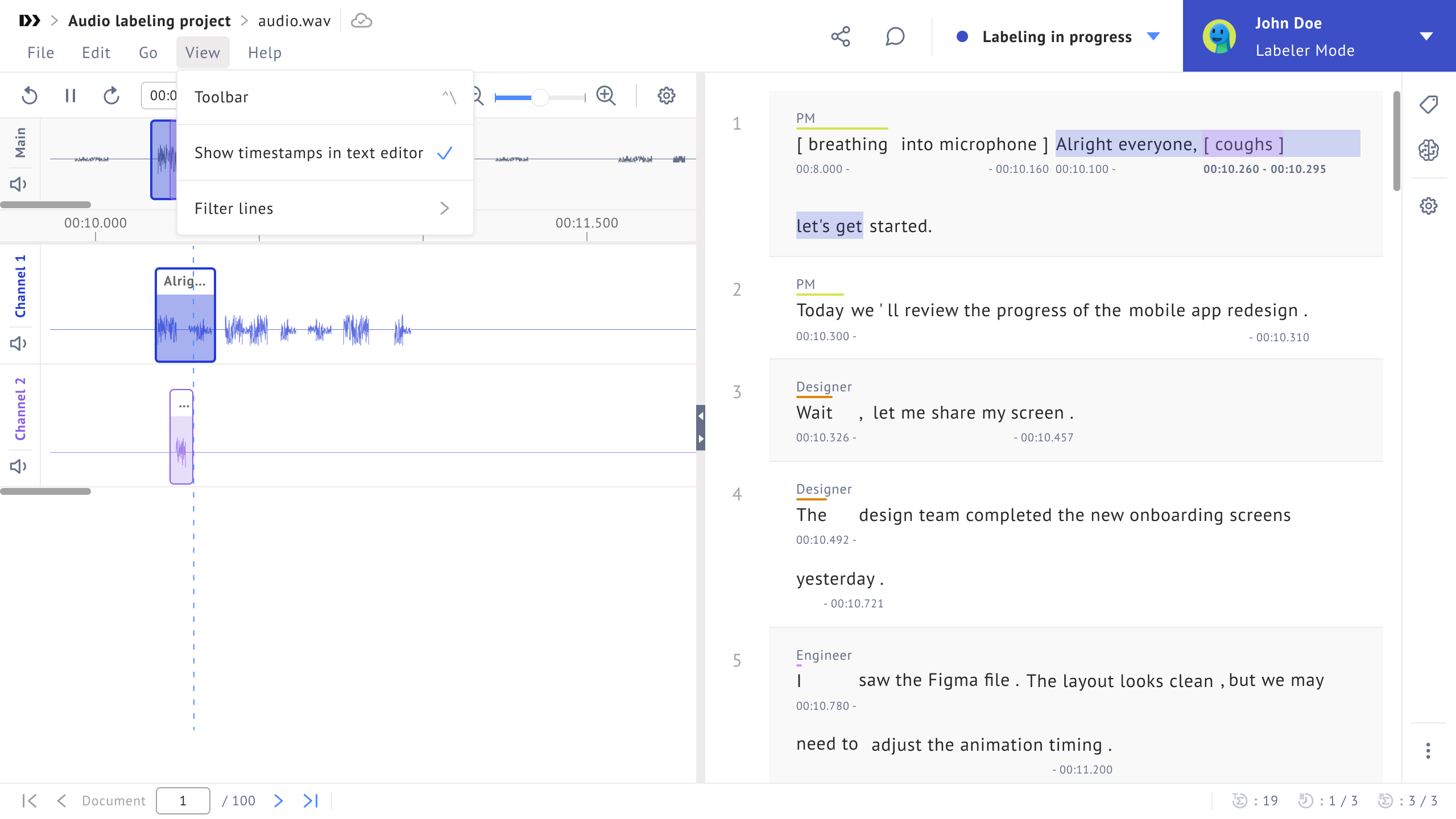
If the project type is **Audio labeling**, an additional option called **Show timestamps in text editor** is available in both Labeler and Reviewer modes.
When enabled, timestamps are always displayed in the text editor, helping users identify which parts of the transcript are connected to timestamps in the audio. Clicking a timestamp allows users to navigate directly to the corresponding timestamp location in the audio.
### Sort lines by metadata fields
In span labeling projects, lines are shown in their original order, which may not be ideal for structured data. Users can define custom metadata during file upload, such as date, user ID, or record ID, and use these fields to sort lines. This helps organize data chronologically, group related records, or follow sequences such as conversation turns. Sorting only affects the current view and does not change the underlying data or other users’ views.
Notes about sorting behavior:
* Sorting affects only the current user’s view.
* Multiple metadata keys can be used, with sorting applied from top to bottom by priority.
* Numeric values are sorted numerically, while values containing letters are sorted alphabetically.
* Lines with missing or empty metadata values appear after those with valid entries.
* The original data remains unchanged.
To sort lines by metadata, follow these steps:
1. Open the **View** menu.

2. Select one or more metadata keys to sort by.
3. Choose ascending or descending order for each key.
4. Add additional sort conditions if needed.
5. Reorder the conditions by dragging them to set the sorting priority.
6. Close the panel to apply the sorting immediately.
7. To return to the original order, clear all sort conditions.

### Personalization settings
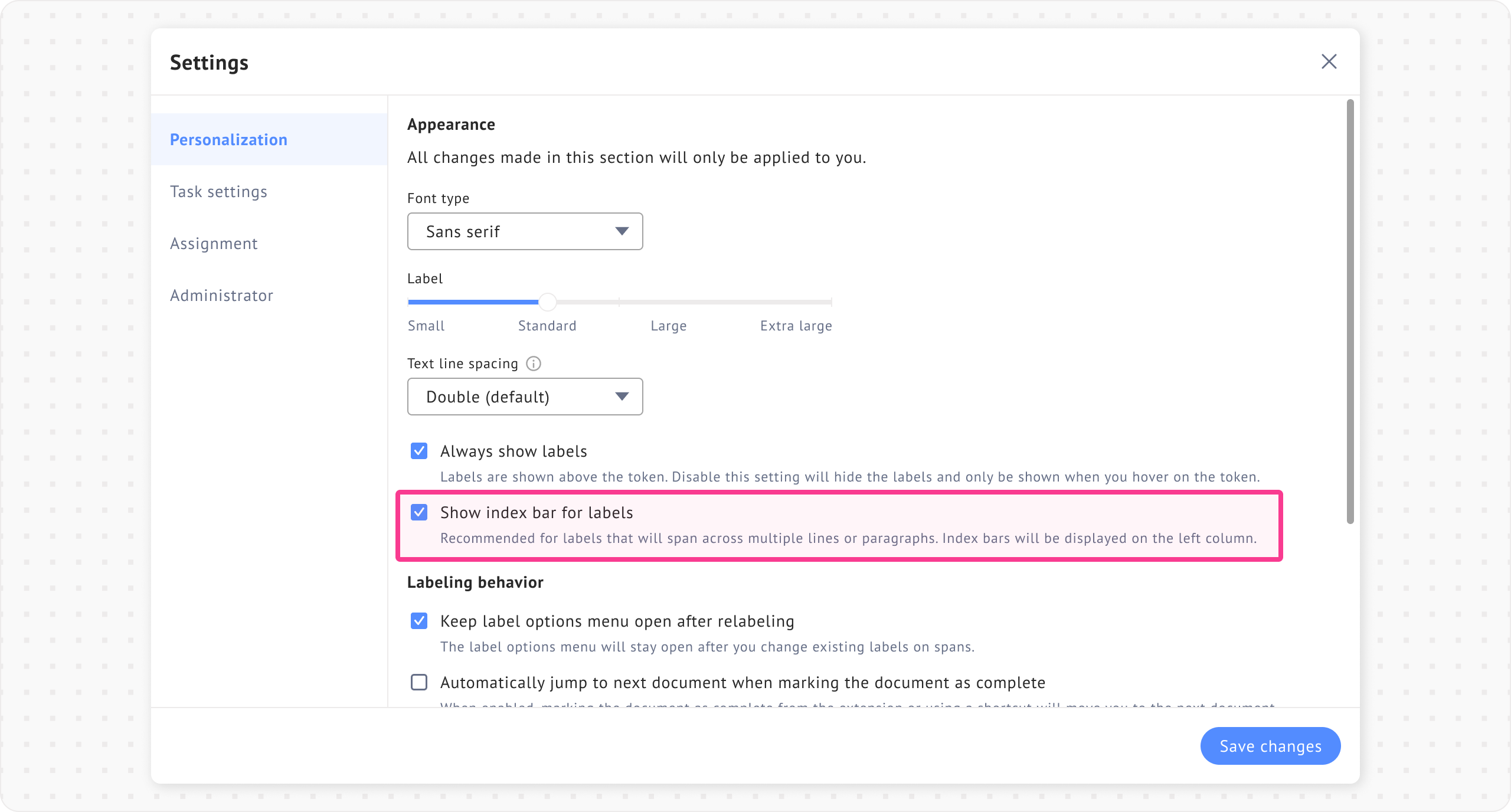
This setting allows users to customize their labeling experience. It is accessible from **File** → **Settings** → **Personalization**.
#### Automatically jump to next document when marking as complete
When this setting is enabled, marking a document as complete automatically moves you to the next document. You can mark a document as complete from the **List of files** extension or by using a shortcut (`Ctrl + M`).
This setting eliminates the need to manually navigate between documents after marking one as complete.
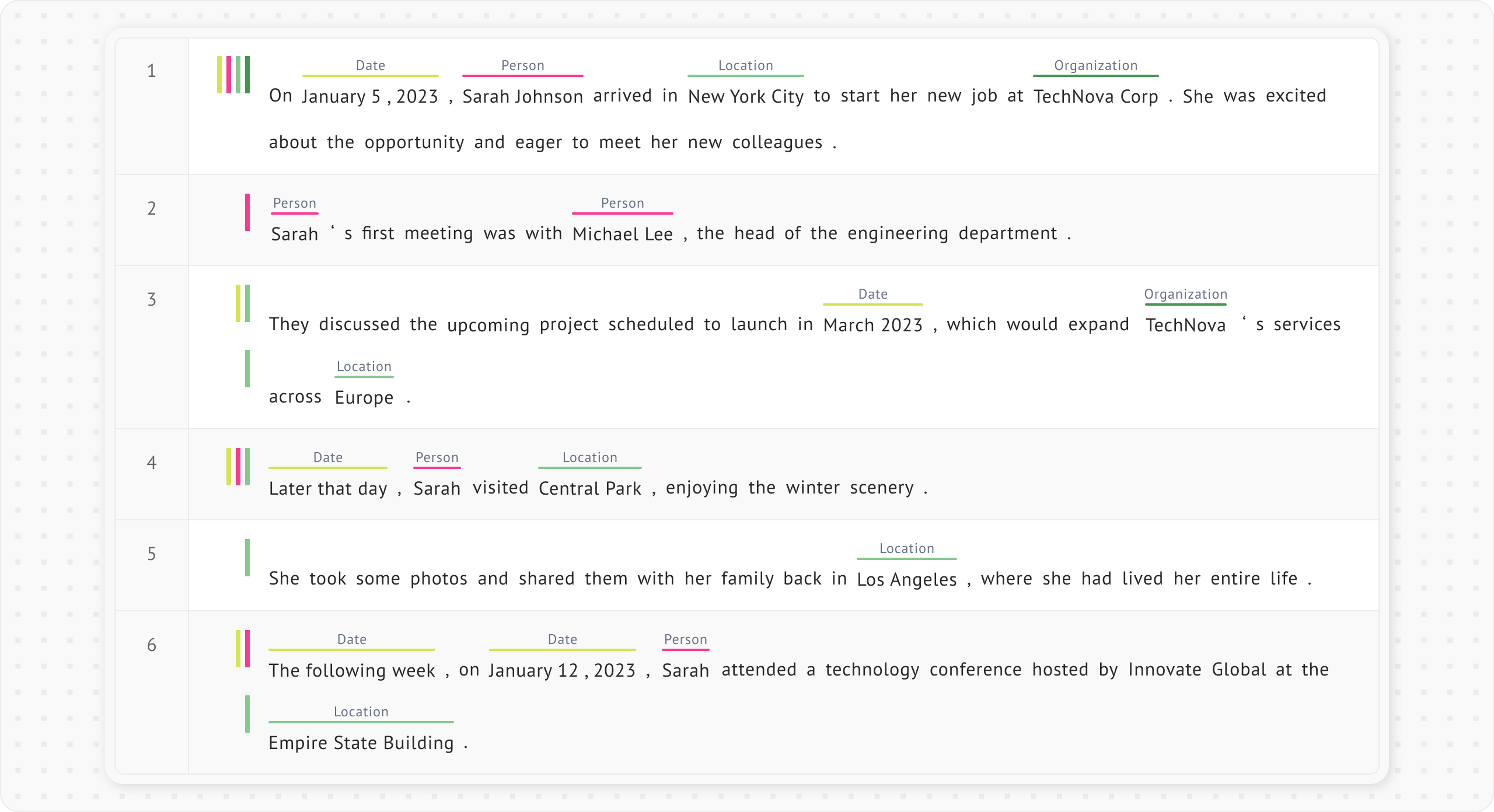
#### Show index bar for labels
When your project involves extensive paragraph or sentence labeling for longer or multi-line text, you can enable **Show index bar for labels** and disable **Always show labels** to reduce clutter.
This setting is accessible from **File** → **Settings** → **Personalization**.
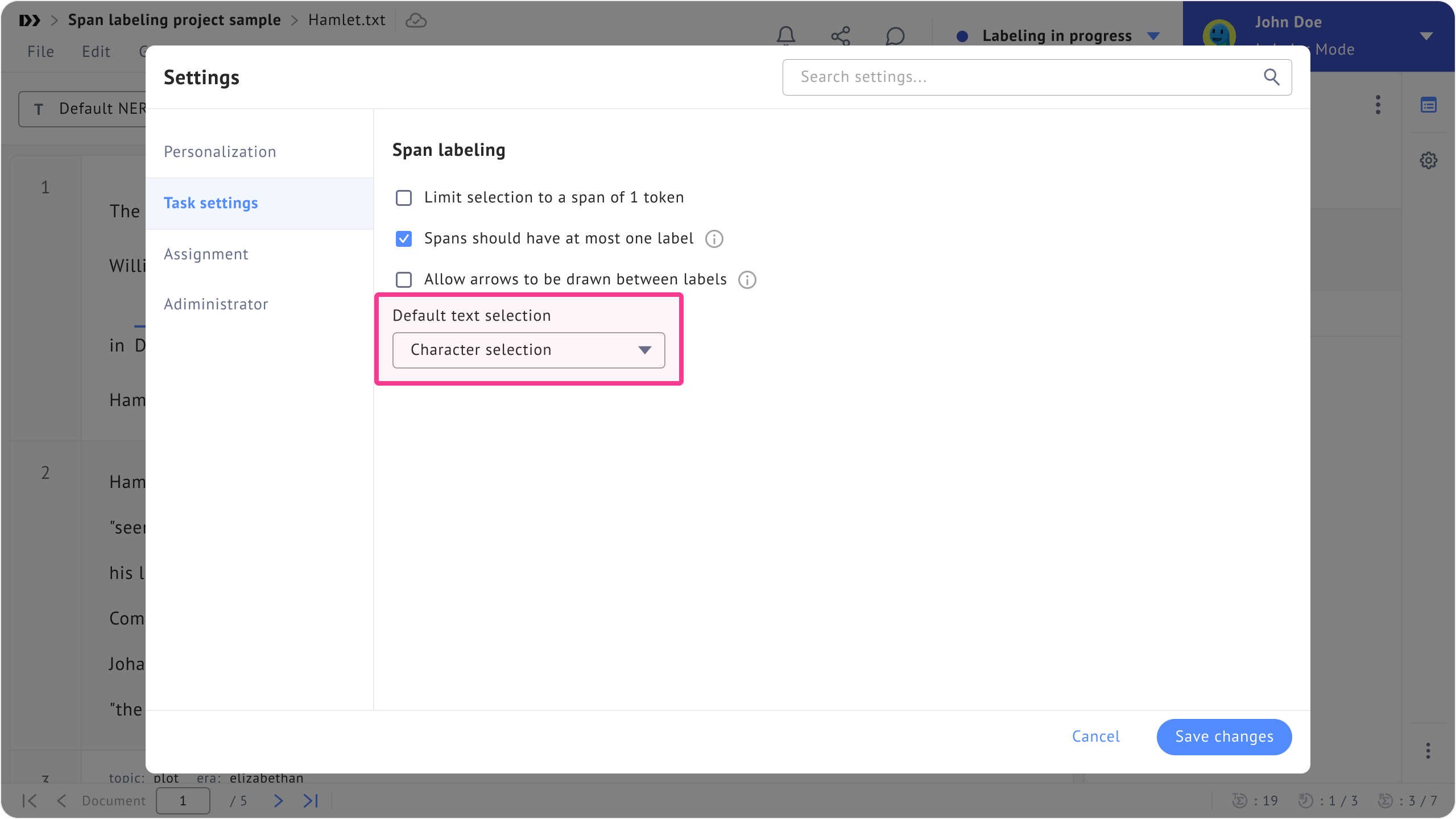
### Character selection
**Character selection** allows you to apply labels at the character level, giving you more precise control than selecting entire words. To enable it:
* Go to **File** → **Settings** → **Task settings.**
* Open **Default text selection**.
* Choose **Character selection.**
Task settings will show in the personal workspace and in the reviewer mode under the team workspace.
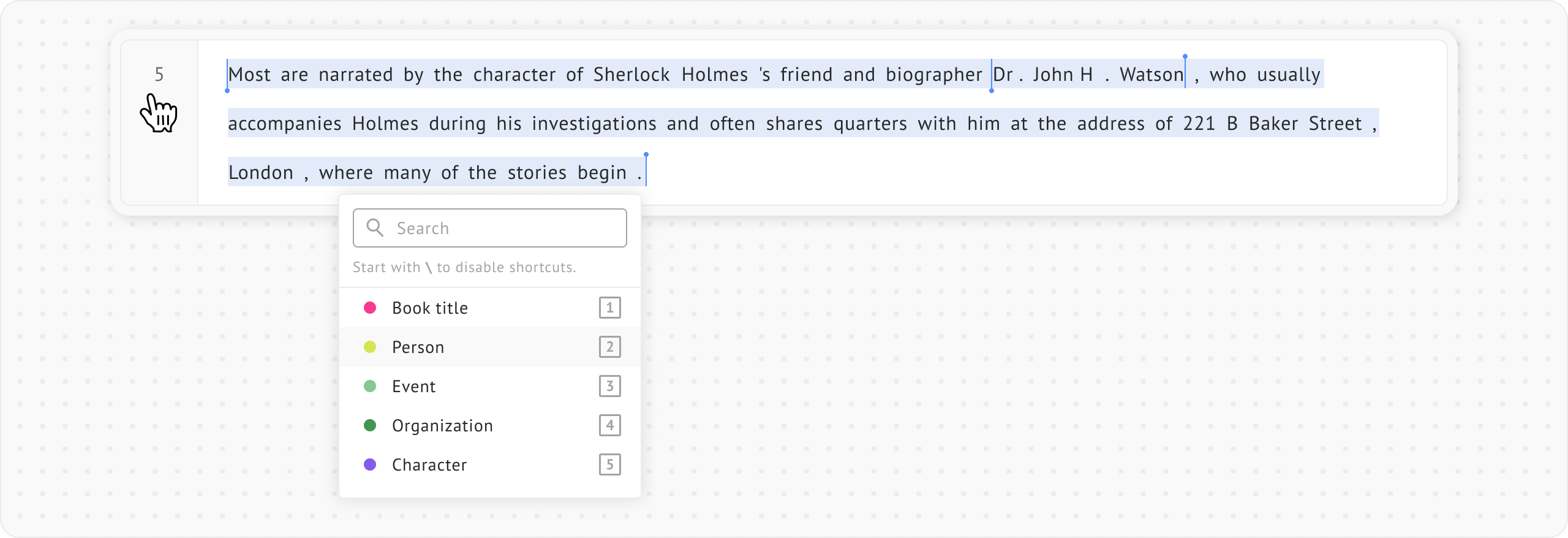
You can label characters in two ways:
* Select the desired character using your mouse.
* Select the character using keyboard shortcuts `Shift` + `→` (Right arrow).
### Highlight an entire sentence
If you want to label the entire sentence, click the line number.
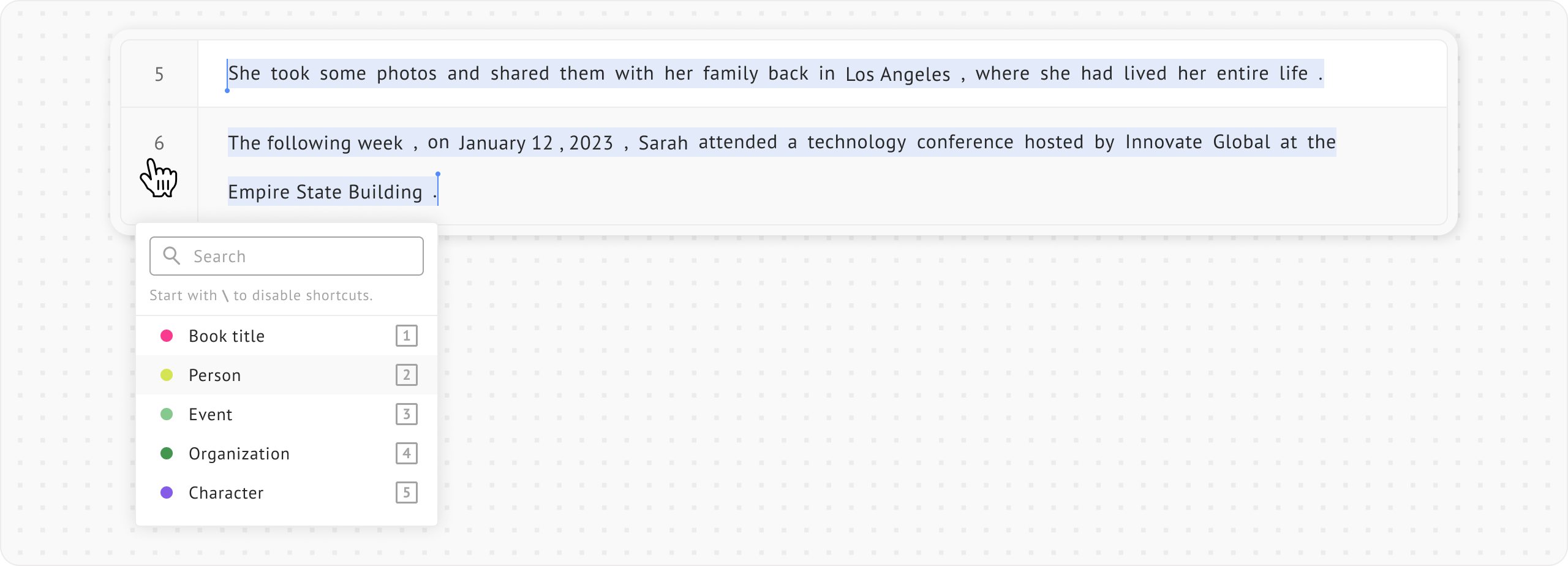
### Select multiple lines at once
To select multiple lines at once, hold `Shift` and click the desired line numbers.
{% hint style="info" %}
You can also select multiple lines starting from any line number, for example, lines 4-8.
{% endhint %}
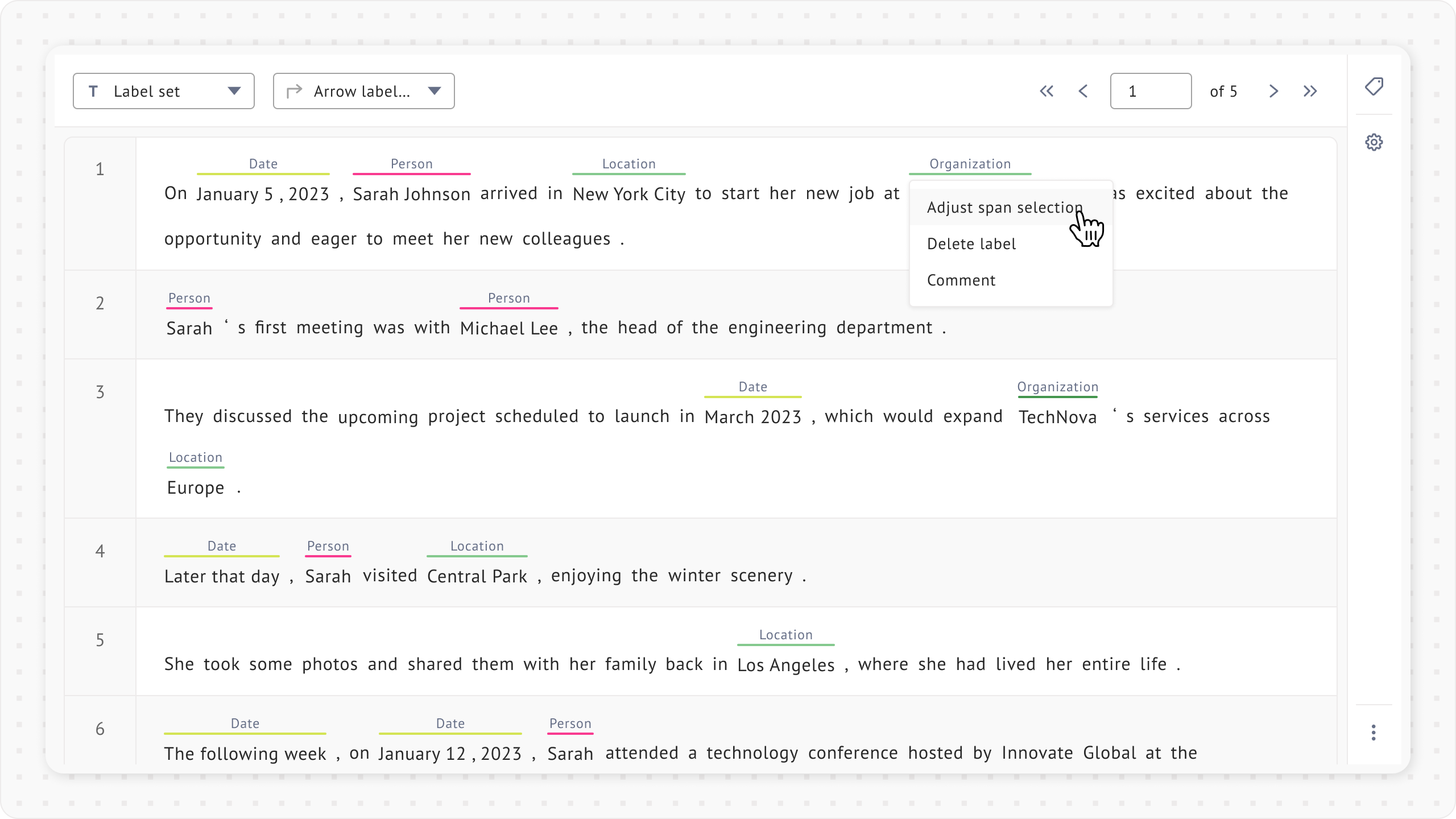
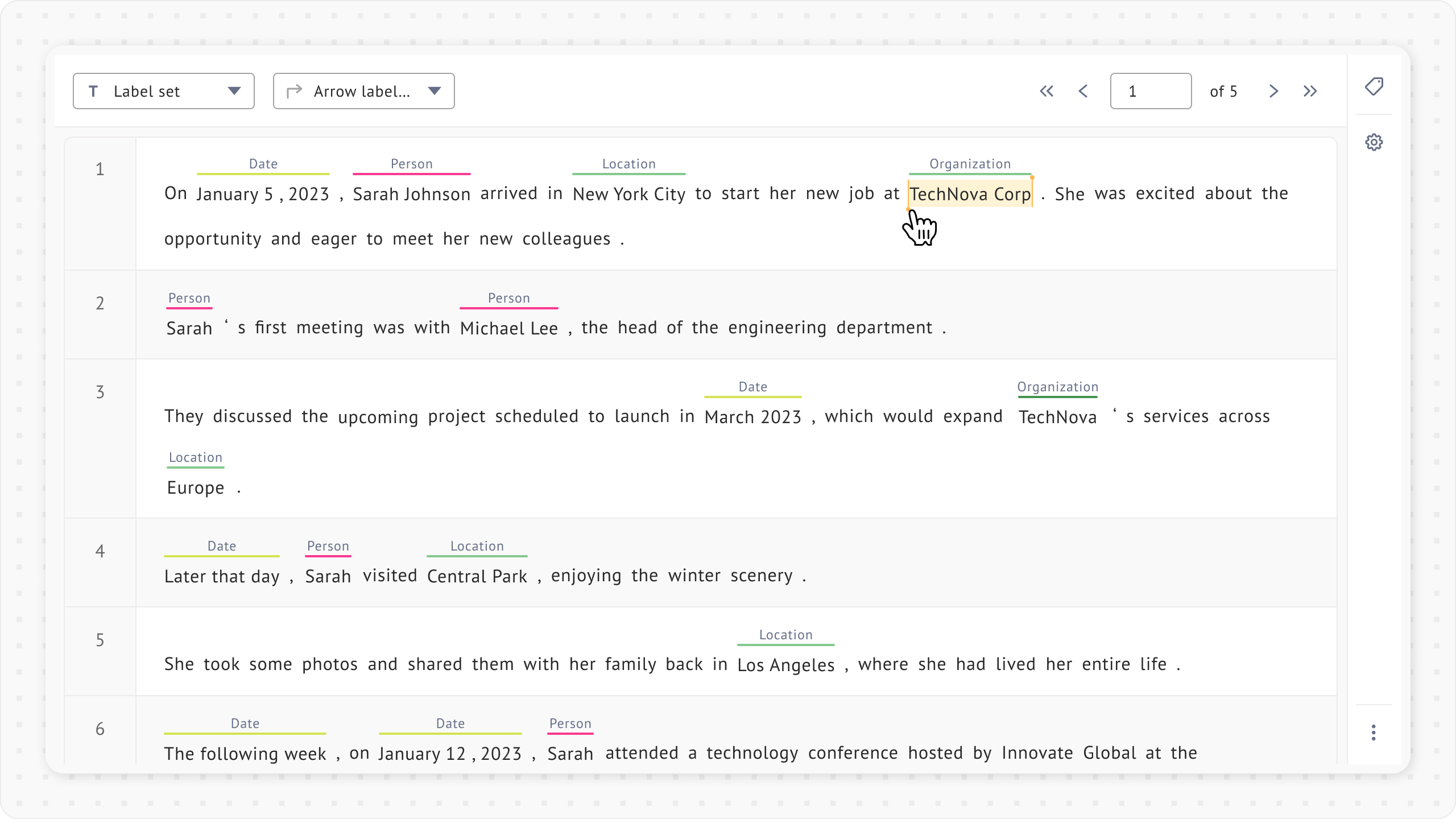
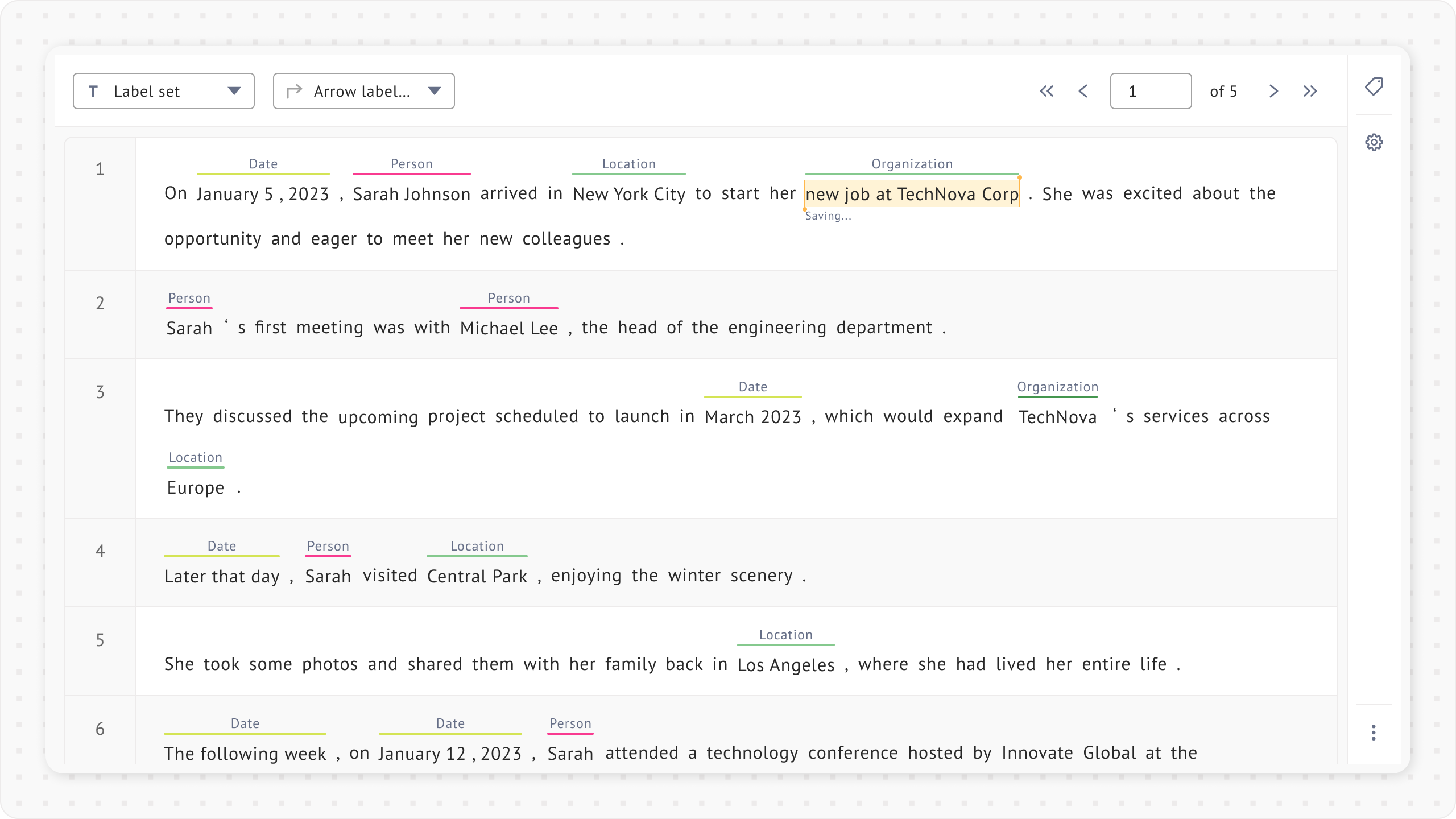
### Adjust span selection
This feature allows you to modify the selection of an already applied span label without needing to delete and reapply it. To adjust a span, you must have permission to modify the label.
To adjust a span selection:
1. Right-click the label you want to adjust.
2. Select **Adjust span selection**. In reviewer mode, if the label is still conflicted and unresolved, this option is not available.
3. You can modify the selection by dragging the selection handles to the desired position.
1. Shortcut, extension, and title bar functionality are disabled while in this mode.
2. All span labeling settings in **Task settings** (such as **Spans should have at most one label** and **Limit selection to a span of 1 token**) still apply.
4. To save changes, click anywhere outside the selection. A saving indicator appears below the selection and disappears once the save is complete.
### Drawing bounding boxes in the OCR interface
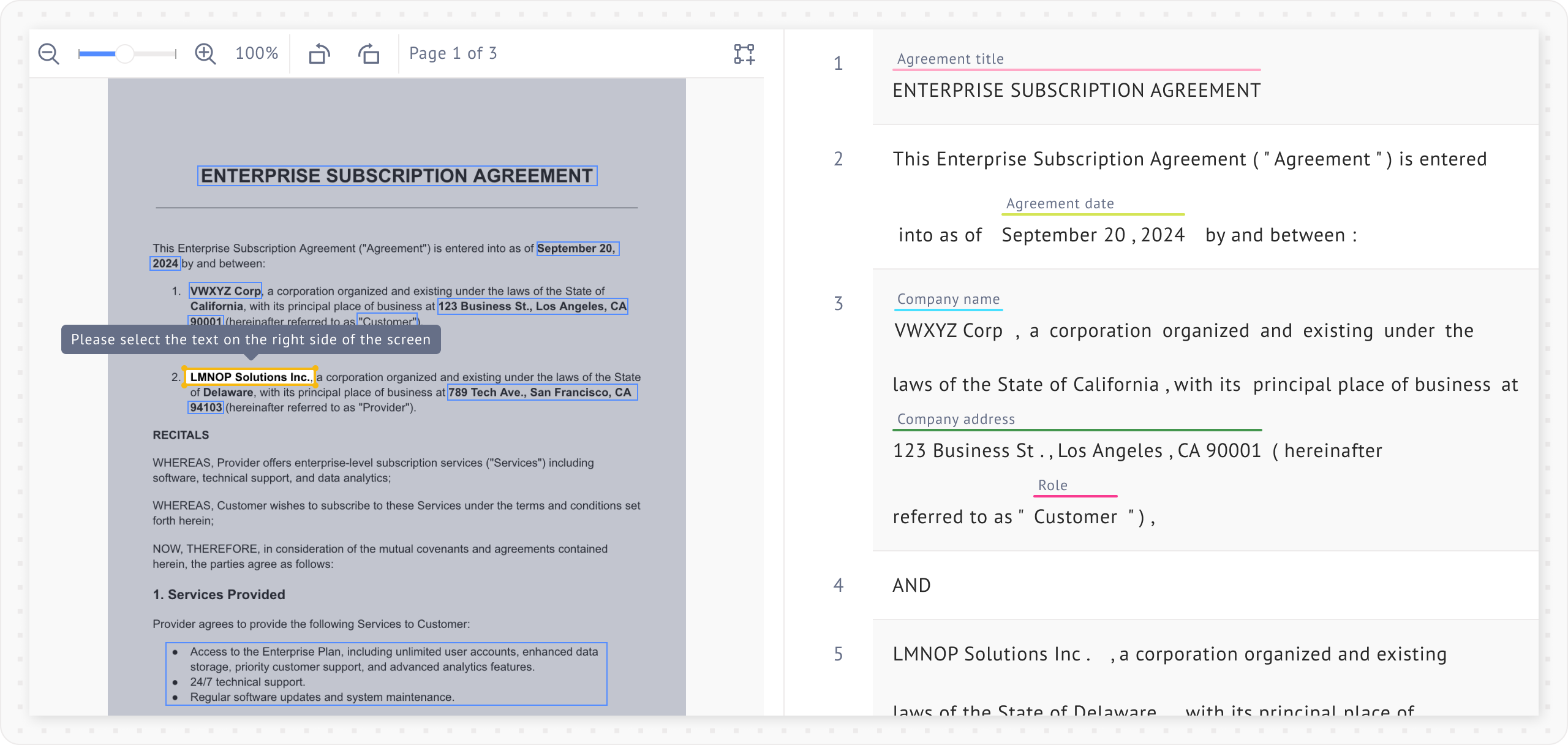
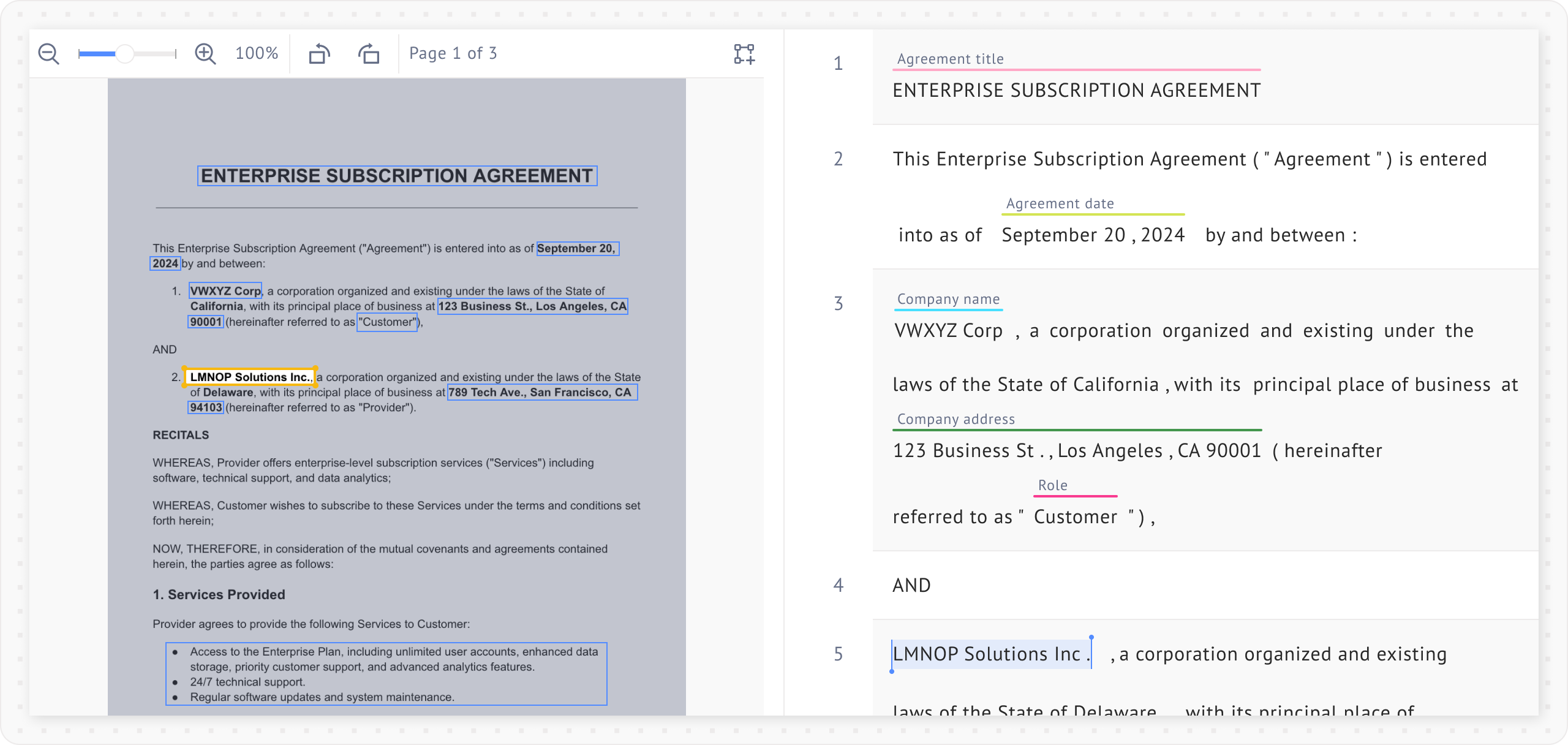
In [OCR](/data-studio-projects/nlp-task-types/project-templates.md#optical-character-recognition-ocr) projects, you can draw bounding boxes in the viewer and link them to the corresponding text.
To start drawing bounding boxes, click the **Draw bounding box** icon in the top-right corner of the document viewer.
After you create a bounding box on the document viewer, a tooltip appears prompting you to select the text on the right side of the screen.
Select the corresponding text in the text viewer to link it to the bounding box you just created.
### Auto-scroll in the OCR project
After you create bounding boxes and link them to the text:
* Clicking a bounding box on a page automatically scrolls the text viewer to the corresponding text.
* Clicking a span of text or a label automatically scrolls the document viewer to the corresponding bounding box.
This feature is especially helpful for PDFs with multiple pages.
### Synchronized scrolling
**Synchronized scrolling** synchronizes the scroll position between the document viewer and the text viewer, reducing the need to scroll through both manually and helping keep them aligned.
{% hint style="info" %}
This feature is currently available only for OCR labeling projects with PDF files.
{% endhint %}
{% embed url="" %}
#### Enable synchronized scrolling
Follow these steps to enable this feature:
1. On the bottom bar of an OCR project, click the button to toggle synchronized scrolling.

2. Wait for the mapping process to complete.
* The mapping process applies only **to the currently opened document**. To process other documents, open each one individually.
* You can check the mapping progress by hovering over the button or viewing the progress indicator at the top of the editor.

* While the mapping is in progress, you can continue labeling. However, actions that modify the text (such as editing sentences) are disabled.
3. Once the mapping process is complete, a success message appears.

4. You can then scroll in one viewer, and the other viewer will automatically scroll in sync.
{% hint style="info" %}
The mapping result is saved for all users assigned to the document. Only one assignee needs to complete the mapping process; others can enable synchronized scrolling without waiting.
{% endhint %}
#### Trigger auto-scroll
To trigger auto-scroll, scroll in the transcription or document viewer using your mouse wheel, touchpad, or the `↓` and `↑` arrow keys. You can also click a span in the transcription to trigger the auto-scroll.
#### Disable the feature
To temporarily disable this feature, click the **Synchronized Scrolling** button again at the bottom of the page. You can re-enable it at any time.
#### Get the best experience
To create scroll points between PDF and the transcription, the system maps text using text matching. To improve mapping accuracy:
1. Use native PDFs instead of scanned PDFs. Native PDFs contain embedded text that can be extracted, while scanned PDFs contain images of text that cannot be processed.
2. Avoid having a single line in the transcription cover multiple lines in the PDF. Ideally, each line in the PDF should match one line in the transcription.
3. For best results, set the document viewer zoom to 100%.
#### Limitations
1. Enabling PII anonymization may disrupt the mapping process, as masked text can prevent accurate matching.
2. Synchronized scrolling is temporarily disabled when the document is rotated and is re-enabled when it returns to its original orientation.
3. Modifying the transcription (editing, inserting, or deleting sentences) may cause unexpected scrolling behavior, as mapping is based on the original transcription and does not account for later changes.
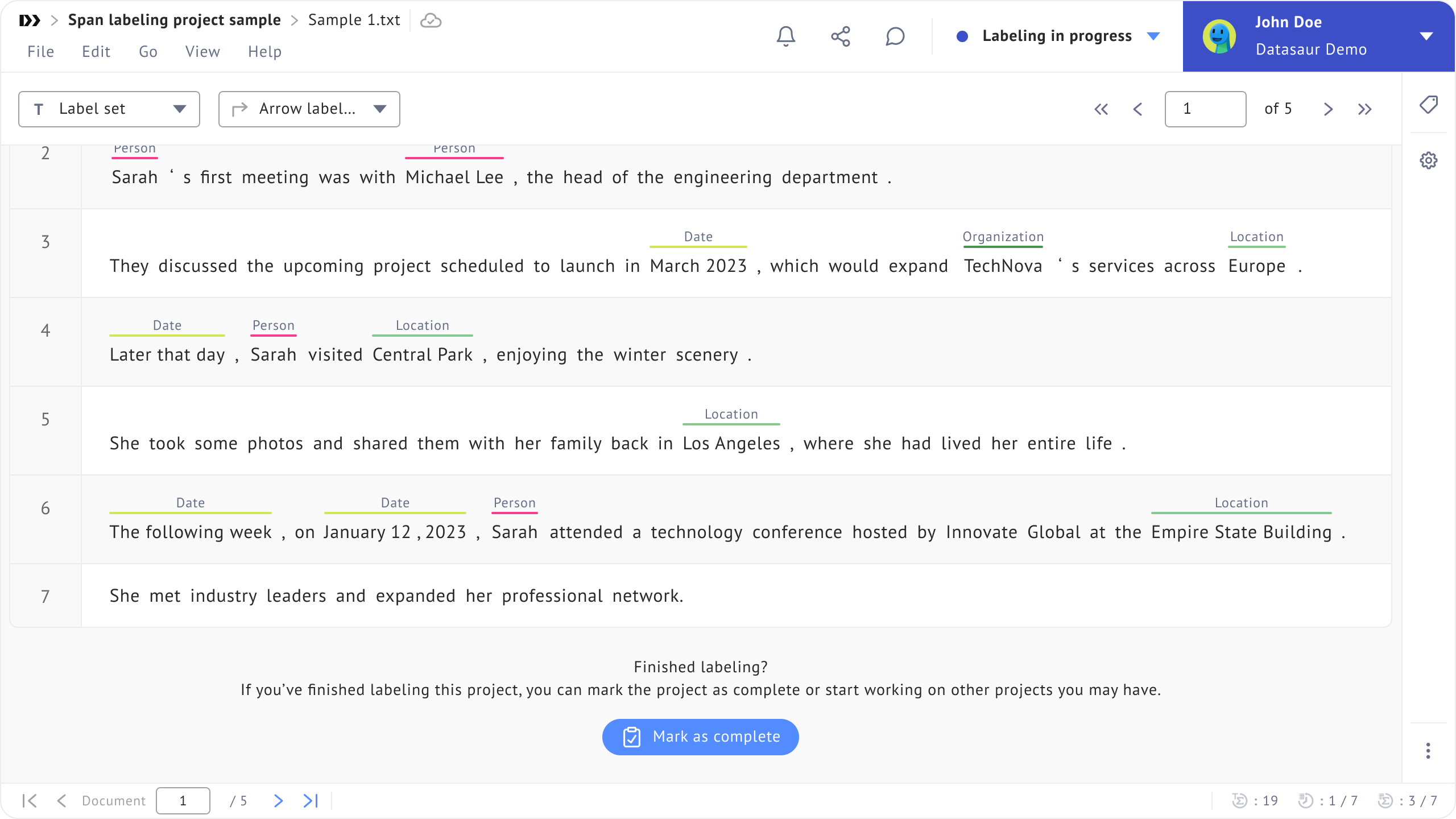
### Mark as complete
Once you have finished labeling, set the **Labeling in progress** status to **Project completed**. This signals to your team that the project is complete and ready for review or export.
.png?alt=media)
.png?alt=media)